Last Shipping Day
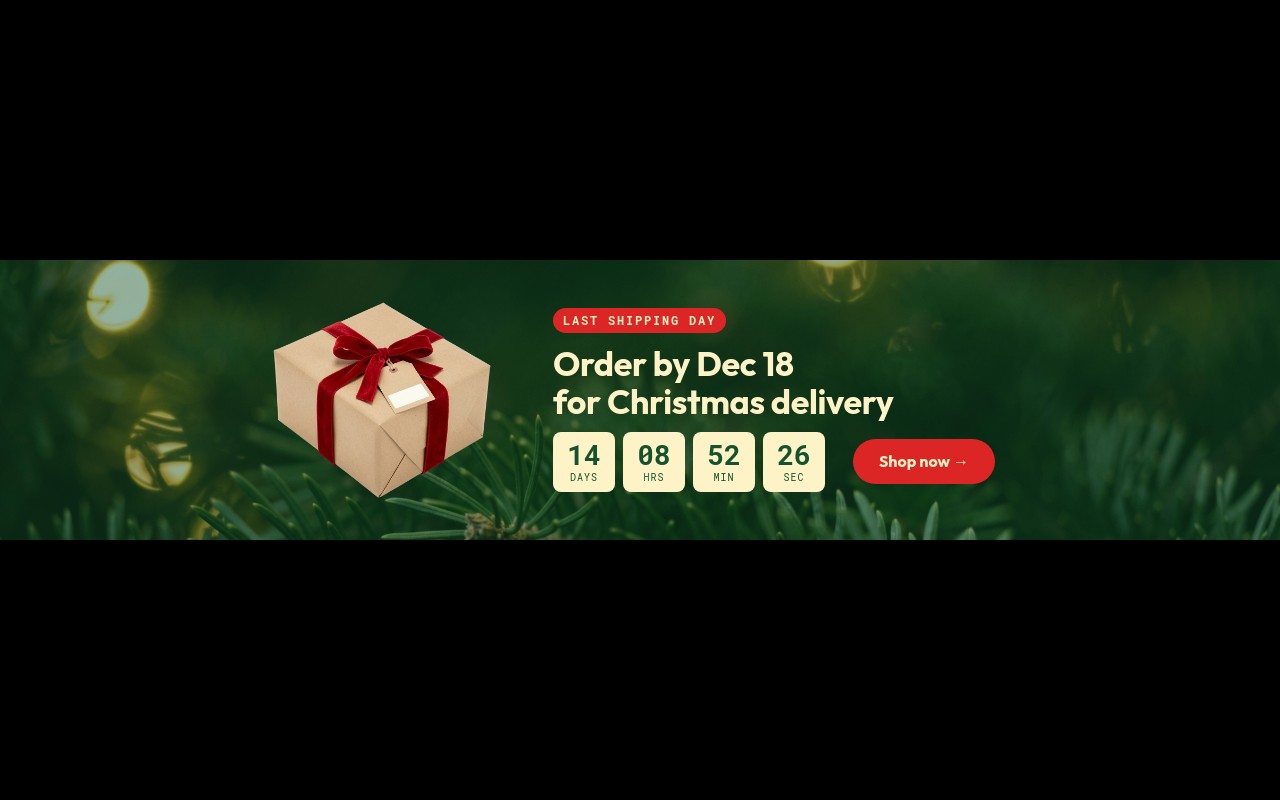
The urgency banner every store runs in mid-December, built as a short strip that sits above your homepage hero. The first slide pairs a kraft-wrapped gift box with a red ribbon, a red "LAST SHIPPING DAY" pill, "Order by Dec 18 for Christmas delivery" in Outfit, a boxed DAYS / HRS / MIN / SEC countdown, and a red "Shop now →" button, all over a soft pine-and-lights photo on evergreen. Two follow-up slides keep selling after the cutoff: "MISSED IT? Free express shipping on orders over $75 until Dec 21" on warm cream, and "STILL LATE? Send a digital gift card" with a $50 gift card on evergreen.
The palette is evergreen #14532d, warm cream #fef3c7, and red #dc2626, with Roboto Mono for the pills, the countdown digits, and the small labels. Slides cross-fade over 500ms, autoplay every 5 seconds, and pause on hover. In the editor, set the countdown to your real 2026 cutoff and the banner handles the week before Christmas on its own.
#What Makes This Template Stand Out
Boxed Live Countdown
Four cream boxes show days, hours, minutes, and seconds in Roboto Mono, each one a live countdown text sharing the same target. The boxes pop in together, the digits keep ticking after publish, and you set the date, time, and timezone in the editor without code.
A Plan for After the Cutoff
Most shipping banners go stale on Dec 19. This one comes with two follow-up slides: an express shipping upgrade ("$75 & UP" in a red circle, "Free express shipping", "until Dec 21") and a digital gift card fallback ("Send a digital gift card", "Delivered instantly by email"). Shoppers who missed standard shipping still have a way to buy.
Short Banner Proportions
4:3 on mobile, then a fixed 240px height from 768px and 280px from 1024px. On desktop it is a thin strip that announces the deadline without pushing your main hero down the page, and on phones the countdown and button stack under the headline so the digits stay readable.
Gift Card Built From Blocks
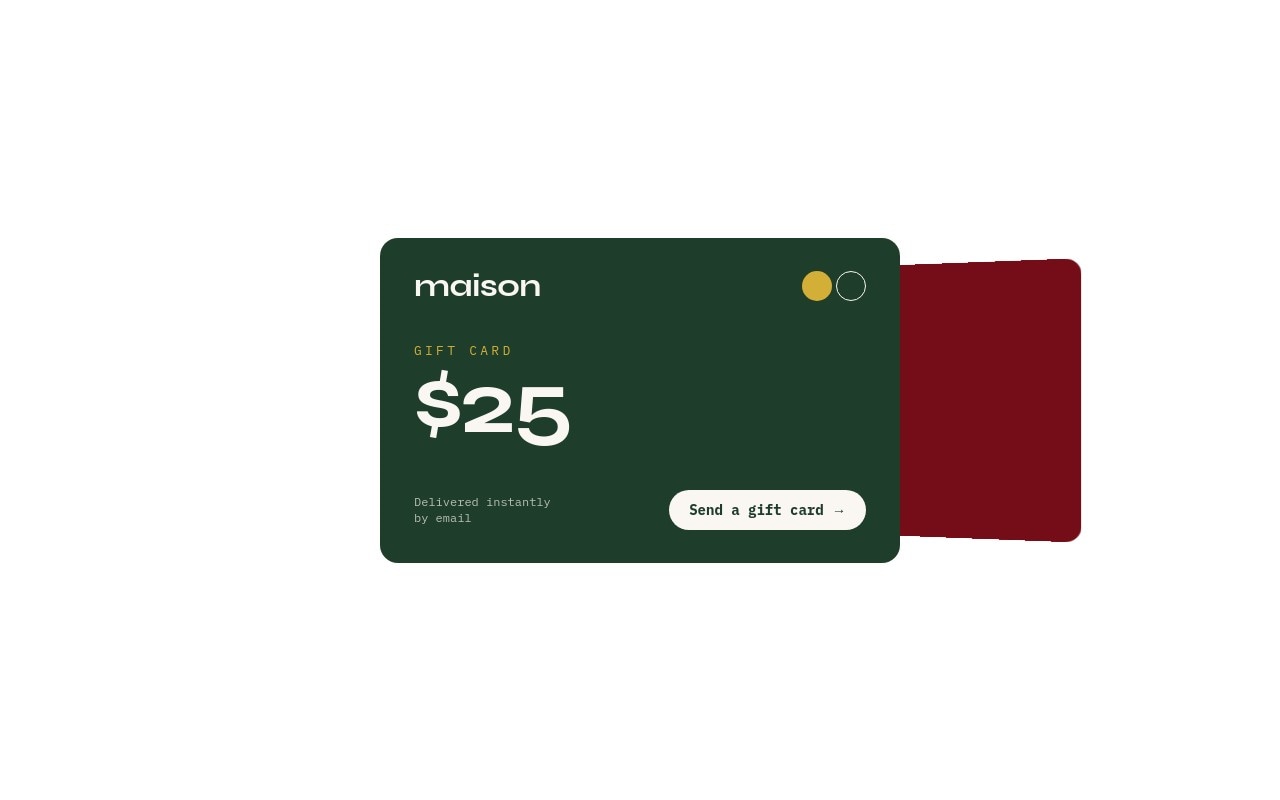
The third slide's gift card is not an image - it is a red rounded block with a "maison" wordmark, a small dot, "$50" with number-roll, and a "GIFT CARD" label. Change the brand name, value, and color directly in the editor, with no design file to update.
Clear Entrance Order
The gift box drops in first, the headline enters with letter-fade, the countdown pops in, and the CTA fades in last. The $75 and $50 figures roll in with number-roll. The message is readable before the animations finish, which matters for a banner people scroll past.
#Who Should Use This Template
This template is built for Shopify merchants and online stores that ship physical products and need to tell shoppers exactly when to order for Christmas delivery. A live countdown to the cutoff answers the question shoppers ask most in December, and the follow-up slides keep the banner useful after the date passes.
Small businesses and makers with their own shipping deadlines can set the countdown to their carrier cutoff and reuse the same banner for Hanukkah, Valentine's Day, or Mother's Day delivery deadlines.
Marketers and agencies managing holiday campaigns get a banner that fits above any existing hero. Recolor it for a client in minutes, and swap the gift box for the client's own packaging.
#Best Use Cases
- ✓Christmas shipping cutoff banners with a live countdown
- ✓Express shipping upgrade promotions after the standard cutoff
- ✓Digital gift card promotions for last-minute shoppers
- ✓Homepage strips placed above an existing holiday hero
- ✓Hanukkah, Valentine's Day, or Mother's Day delivery deadline banners
- ✓Order-by reminders for made-to-order and personalized products
- ✓Holiday landing pages that link from shipping reminder emails
- ✓Agency holiday campaigns reused across several client stores
#How to Customize
- Open the Last Shipping Day template in Swiper Studio - you will see three slides: the countdown banner, the express shipping upgrade, and the gift card fallback.1
- Set the countdown - select any of the four countdown boxes and enter your cutoff date, time, and timezone. The four boxes share one target, so give them all the same value.2
- Update the headline - change "Order by Dec 18 for Christmas delivery" to your own cutoff date and occasion.3
- Swap the gift box cutout and the pine background photo in the media panel for your own packaging and a texture that fits your brand.4
- Edit the express slide - change the $75 threshold in the red circle and the "until Dec 21" deadline to match your carrier.5
- Edit the gift card slide - replace the "maison" wordmark and the $50 value with your brand name and a real card amount.6
- Point the "Shop now →" and "Send a gift card →" link blocks at your holiday collection and gift card product page.7
- Publish to CDN and paste the embed snippet, add it to Shopify with the Swiper Studio app, use Paste into Webflow, or export to HTML, React, Vue, Next.js, or a Web Component.8
#Frequently Asked Questions
- How do I set the countdown to my shipping cutoff?
- The DAYS / HRS / MIN / SEC boxes are four live countdown texts ({dd}, {hh}, {mm}, {ss}) that share one target, with the largest unit set to days so each box shows the right part of the time. In the template they start about two weeks from when you open it. In the editor, set your real cutoff date, time, and timezone, for example Dec 18, 2026 at 11:59 PM in your warehouse timezone. The countdown keeps ticking after export or publish, with no code needed.
- What happens when the countdown reaches zero?
- By default the boxes show zeros. You can switch each box to hide, or to show custom text instead. That is also the moment to move the "Express upgrade" or "Gift card fallback" slide to the front, so the banner keeps giving late shoppers a reason to buy.
- How tall is the banner?
- It is a short strip, not a hero. On mobile it is 4:3, with the gift box beside the copy and the countdown stacked above the button, then it switches to a fixed height of 240px from 768px and 280px from 1024px, with everything in one row. On a wide desktop that is roughly a 5:1 to 7:1 strip that sits above your main hero or between homepage sections.
- Can I change the dates and shipping thresholds?
- Yes. Every line is editable text: "Order by Dec 18 for Christmas delivery" on the first slide, "Free express shipping" and "On orders over $75 until Dec 21" on the second, and the $50 gift card on the third. Match them to your carrier cutoffs and your own offer.
- How do I add the banner to Shopify or Webflow?
- On Shopify, install the official Swiper Studio Shopify app and add the published slider to any page as a native theme block from the theme editor. In Webflow, use "Paste into Webflow" to add it as native elements. On Squarespace, Wix, WordPress, or any other site, publish to CDN and paste the embed snippet, or export to HTML, React, Vue, Next.js, or a Web Component.
#Related Templates

#Related Resources
- Swiper Studio for Ecommerce Stores
- Swiper Studio for Shopify
- Swiper Studio for Small Businesses
- Swiper Studio for Marketers
Ready to Build Your Slider?
Pick a template, customize it visually, and export production-ready code to React, Vue, Next.js, HTML, Webflow, and more. No coding required.