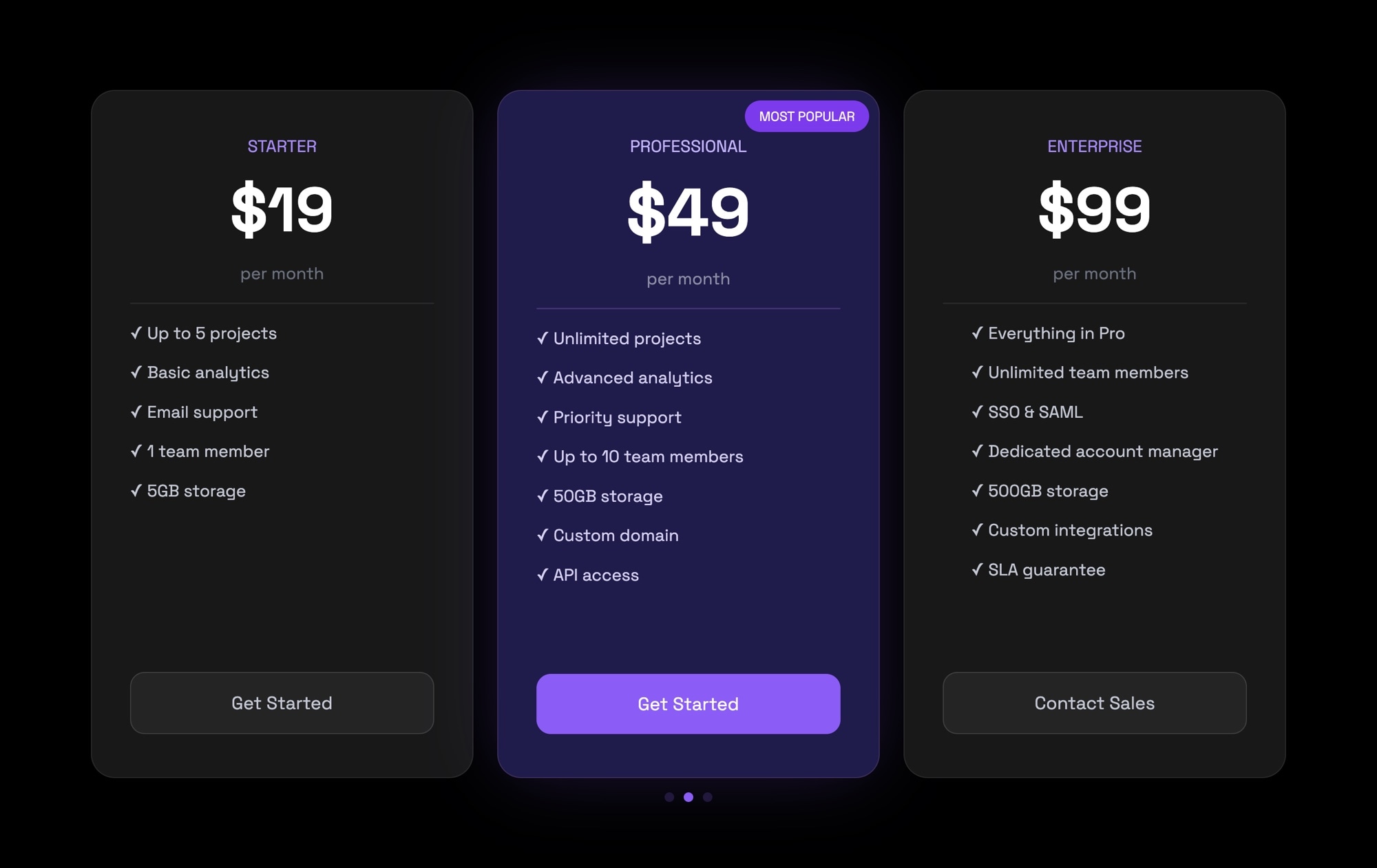
Pricing Plans Slider Template - Dark Theme
Pricing pages are where visitors become customers. The way you present your tiers - what you highlight, how you frame the value, which plan you draw attention to - directly affects which plan people choose and whether they convert at all. A static pricing table works, but a well-designed pricing slider does more. It gives each tier room to breathe, lets visitors swipe through options on mobile, and uses visual hierarchy to guide attention toward your recommended plan.
This dark-themed pricing plans template puts three tiers side by side on a rich dark background: Starter at $19/month, Professional at $49/month with a purple "Most Popular" badge and accent border, and Enterprise at $99/month. Each card includes the tier name, monthly price, a feature checklist, and a clear CTA button. The Professional card stands out with a purple accent border and button, making it the obvious choice without feeling pushy. The dark aesthetic gives the section a premium, modern feel that works especially well for SaaS products, developer tools, and technology companies.
#What Makes This Template Stand Out
Visual Hierarchy That Guides Decisions
The Professional tier sits between Starter and Enterprise with a purple accent border, a 'Most Popular' badge, and a highlighted CTA button. This visual emphasis naturally draws the eye to your recommended plan without disrupting the clean layout of the other tiers.
Dark Theme for a Premium Aesthetic
The dark background creates contrast that makes pricing numbers, feature lists, and CTA buttons pop. Dark themes convey sophistication and work particularly well for SaaS dashboards, developer tools, creative platforms, and technology products where the audience expects a modern UI.
Complete Feature Checklists on Every Card
Each pricing card includes a structured feature list with checkmarks, so visitors can compare tiers at a glance. The checklist format is scannable and familiar - visitors immediately understand what each plan includes without reading paragraphs of text.
Swipeable on Mobile, Side-by-Side on Desktop
On desktop, all three plans display side by side for easy comparison. On mobile, the cards become a swipeable slider so visitors can browse tiers with a thumb swipe. No cramped tables, no horizontal scroll traps - just a clean mobile experience.
#Who Should Use This Template
This template is built for any business that sells tiered plans or packages. SaaS companies, subscription services, membership platforms, hosting providers, API services, and digital product sellers all need a pricing section that clearly communicates what each tier includes and nudges visitors toward the right choice.
If your product has a dark-themed marketing site or dashboard, this template integrates seamlessly. The dark background and purple accents match the visual language of modern software products. It also works as a standalone embedded section on any page - the dark styling creates a natural visual break that sets the pricing apart from surrounding content.
Marketing teams and founders who want to test pricing presentation without developer involvement will find this template especially useful. Change tier names, prices, features, and accent colors in the visual editor. Publish to CDN and embed on your landing page. When you adjust your pricing or add a new tier, update the slider and republish - the live version updates instantly.
#Best Use Cases
- ✓SaaS product pricing pages with monthly or annual plan tiers
- ✓Subscription service signup flows comparing Basic, Pro, and Premium options
- ✓Agency or freelancer service packages displayed on a portfolio website
- ✓Hosting provider plan comparisons with feature checklists
- ✓Online course or membership platform tier selection
- ✓API or developer tool pricing with usage-based plan breakdowns
- ✓Landing pages for product launches where pricing is a key conversion element
- ✓Dark-themed websites and dashboards that need a matching pricing section
#How to Customize
- Open the template in Swiper Studio. Each pricing tier is a separate slide with text elements for the tier name, price, feature list, and a link block for the CTA button.1
- Update the tier names, prices, and feature lists to match your product. Add or remove feature checklist items as needed.2
- Change the accent color on the 'Most Popular' badge, card border, and CTA button to match your brand - select the element and update its background or border color in the style panel.3
- Adjust the CTA button text and link URLs. Set 'Get Started' buttons to your signup page and 'Contact Sales' to your sales form.4
- Add or remove pricing tiers by duplicating or deleting slides. If you have four tiers, duplicate a slide and update the content.5
- Configure responsive breakpoints - set slides per view to 3 on desktop, 2 on tablet, and 1 on mobile so the layout adapts to every screen size.6
- Add entrance animations to the cards or individual elements for a polished reveal when the section scrolls into view.7
- Publish to CDN and paste the embed snippet into your pricing page. Republish anytime you update pricing.8
#Frequently Asked Questions
- Can I add more than three pricing tiers?
- Yes. Each pricing tier is a slide, so you can add as many as you need. Duplicate an existing slide, update the tier name, price, and feature list, and the slider handles the rest. Use slides per view settings to control how many tiers are visible at once on different screen sizes.
- How do I change the accent color from purple to my brand color?
- Select the "Most Popular" badge, the highlighted card border, or the CTA button and change its background color in the style panel. You can use any hex color value. The dark background and card colors are also fully editable.
- Can I link the CTA buttons to my signup or checkout page?
- Yes. Each CTA button is a link block element. Select the button, set the link URL to your signup page, checkout flow, or contact form, and choose whether the link opens in the same tab or a new tab.
- Will the pricing cards stack on mobile?
- By default the template shows three cards side by side on desktop and one swipeable card on mobile. You can adjust the slides per view at each responsive breakpoint to control exactly how many cards appear on mobile, tablet, and desktop.
- Can I embed this pricing slider on my existing website?
- Yes. Publish the slider to CDN from Swiper Studio and paste the embed snippet into any website - WordPress, Webflow, Squarespace, Shopify, or plain HTML. The slider loads from the CDN and displays your pricing cards exactly as designed.
#Related Templates

#Related Resources
- Swiper Studio for Landing Pages
- Swiper Studio for Small Businesses
- Swiper Studio for Marketers
- Swiper Studio for Agencies
Ready to Build Your Slider?
Pick a template, customize it visually, and export production-ready code to React, Vue, Next.js, HTML, Webflow, and more. No coding required.