Gift Card Promo
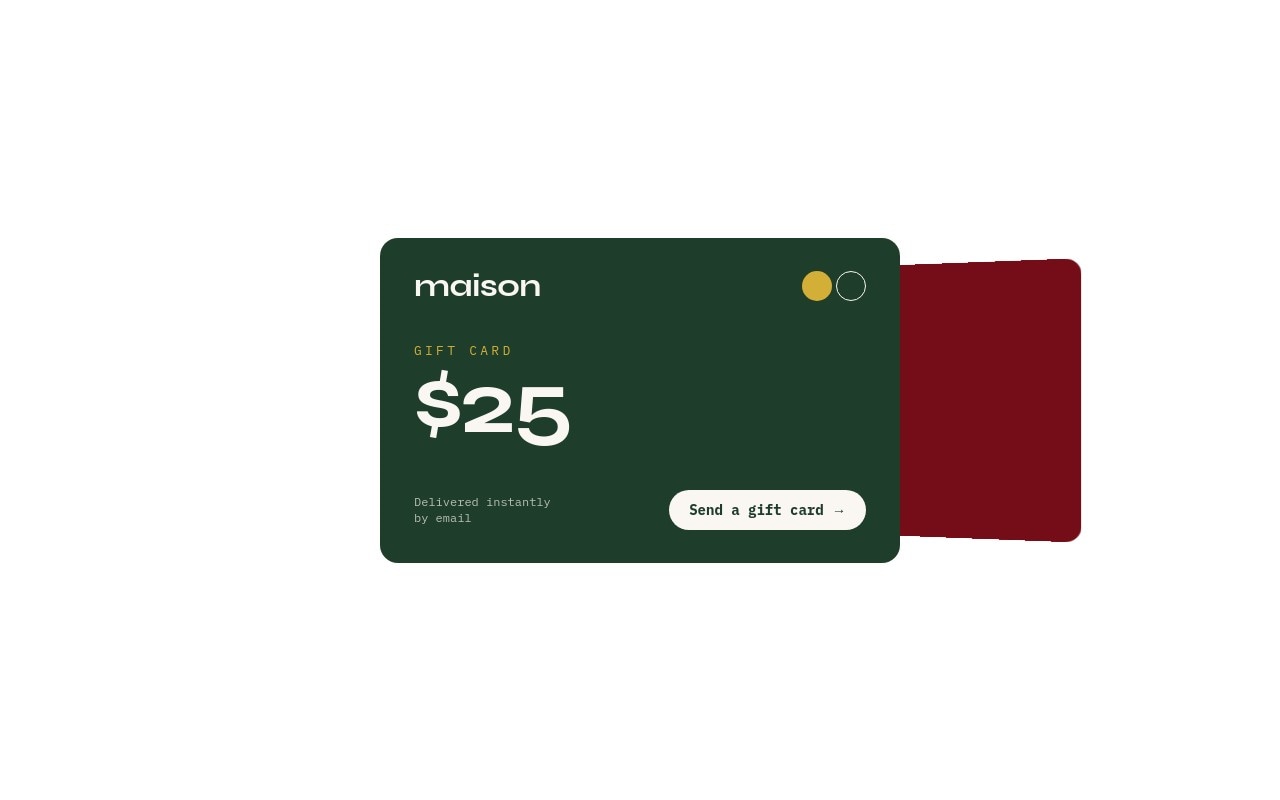
A gift card promo that looks like the product it sells. Four credit-card-sized cards sit in a cards stack: a forest green $25, a deep red $50, a gold $100, and a black "PREMIUM GIFT CARD" $250 set over a photo of a sealed envelope. Each card carries a "maison" wordmark in Syne, two small circles in the top-right corner like a chip, a tracked IBM Plex Mono "GIFT CARD" label, a big Syne amount, and a footer with "Delivered instantly by email" and a "Send a gift card" pill.
There are almost no images in this template, which is the point. The cards are blocks and text, so reskinning them into your brand means changing a few colors and a wordmark, not reshooting anything. The slider is sized to the card itself (320 x 200 on phones, 440 x 275 at 768px, 520 x 325 at 1024px) with overflow visible, so the next card peeks out from behind the active one. It uses Swiper's cards stack effect at 600ms and autoplays every 4 seconds, pausing on hover.
#What Makes This Template Stand Out
Cards Built From Blocks, Not Pictures
Each card is a slide with a solid color and 18px rounded corners. The wordmark, chip circles, label, amount, and CTA are all editable elements, so the whole set can be rebranded in a few minutes. Only the $250 card uses a photo, and it is optional.
Cards Stack With the Next Card Peeking
The slider is exactly the size of one card and its overflow is visible, so the stack shows behind the active card at a slight angle. Visitors can swipe through the denominations like cards in a wallet, and autoplay moves on every 4 seconds when nobody is interacting.
Number-Roll Amounts
The $25, $50, $100, and $250 amounts use the number-roll animation with a 150ms delay, so the digits roll up each time a card comes to the front. The CTA pill fades in at 600ms so the amount lands first.
Four Colorways, One Layout
Forest green #1f3d2b, deep red #9b111e, gold #d4af37, and black #111111, all on a cream #faf7f2 text color (black on the gold card). The CTA pill switches to match each card: cream on green and red, black on gold, gold on the black premium card.
Syne and IBM Plex Mono
Syne in bold handles the wordmark and the amounts. IBM Plex Mono carries the tracked GIFT CARD label, the delivery line, and the CTA. The pairing reads like printed card stock and still works if you swap in your own brand font for the wordmark.
#Who Should Use This Template
This template is built for Shopify merchants and online stores selling digital gift cards, especially in the last days before Christmas when physical gifts can no longer ship in time. A gift card banner that shows the actual denominations converts better than a generic "Gift cards available" line, and every card links straight to your gift card product.
Boutiques, restaurants, salons, and studios can use it on their homepage or a dedicated gift card page. Change the colors to your brand, retype the amounts to match what you sell, and point each card at the right variant.
Agencies and Webflow designers preparing holiday campaigns for several clients get a gift card module that reskins quickly. Because nearly everything is blocks and text, the same layout works for a coffee roaster, a bookshop, and a spa with only color and wordmark changes.
#Best Use Cases
- ✓Last-minute Christmas gift card banners after the shipping cutoff
- ✓Shopify gift card product pages showing every denomination
- ✓Restaurant, salon, and spa gift voucher sections on a homepage
- ✓Holiday gift guide pages with a "can't decide?" gift card module
- ✓Mother's Day, Father's Day, and graduation gift card promotions
- ✓Corporate and bulk gift card offers for end-of-year client gifts
- ✓Loyalty or store credit promotions styled as physical cards
- ✓Membership and subscription gift pages with tiered amounts
#How to Customize
- Open the Gift Card Promo template in Swiper Studio - you will see four card slides: $25 green, $50 red, $100 gold, and $250 black with the envelope photo.1
- Replace the "maison" wordmark on each card with your store name, or swap the text for your logo image.2
- Change each card color in the slide settings to match your brand, then check the text and CTA colors for contrast on each card.3
- Retype the amounts to your own denominations - the number-roll animation runs up to whatever value you enter.4
- Replace or remove the envelope photo on the $250 card in the media panel, or add a background photo to any other card.5
- Point each "Send a gift card" link block at your gift card product page or the matching variant.6
- Check the three card sizes (320 x 200, 440 x 275 at 768px, 520 x 325 at 1024px) and adjust them if your page needs a larger card.7
- Publish to CDN and add it to Shopify with the Swiper Studio app, use Paste into Webflow, or export to HTML, React, Vue, Next.js, or Web Component.8
#Frequently Asked Questions
- Are the gift cards images or real editable elements?
- They are real elements. Each card is a slide with an 18px corner radius and a solid background color, and everything on it - the "maison" wordmark, the two decorative circles, the "GIFT CARD" label, the amount, the "Delivered instantly by email" line, and the CTA pill - is a text or block you can edit. Only the $250 card uses a photo (a black envelope with a gold wax seal at 65% opacity), and you can remove or replace it in the media panel.
- How do I put my own brand on the cards?
- Retype "maison" with your store name or swap it for a logo image, then change the four card colors in the slide settings: forest green #1f3d2b, deep red #9b111e, gold #d4af37, and black #111111. The text colors are set per card (cream #faf7f2 on the dark cards, black on the gold one), so check contrast after you change a background.
- Can I change the amounts or add more cards?
- Yes. Retype $25, $50, $100, or $250 and the number-roll animation runs up to the new value when the card comes to the front. To add a denomination, duplicate a card slide and change its color and amount. Slide order controls the stack order.
- Where should the "Send a gift card" button point?
- Each CTA is a link block, so point it at any URL: the gift card product page in your Shopify store, a specific variant, or a gift card page on your own site. You can give each card its own link so the $100 card opens the $100 variant.
- How do I add it to Shopify, Webflow, or another site?
- On Shopify, install the official Swiper Studio Shopify app and add the published slider to any page as a native theme block from the theme editor. In Webflow, use Paste into Webflow to add it as native elements. For Squarespace, Wix, WordPress, or any other site, publish to CDN and paste the embed snippet. You can also export to HTML, React, Vue, Next.js, or Web Component.
#Related Templates

#Related Resources
- Swiper Studio for Shopify
- Swiper Studio for E-commerce Stores
- Swiper Studio for Small Businesses
- Swiper Studio for Landing Pages
Ready to Build Your Slider?
Pick a template, customize it visually, and export production-ready code to React, Vue, Next.js, HTML, Webflow, and more. No coding required.