Christmas Gift Guide
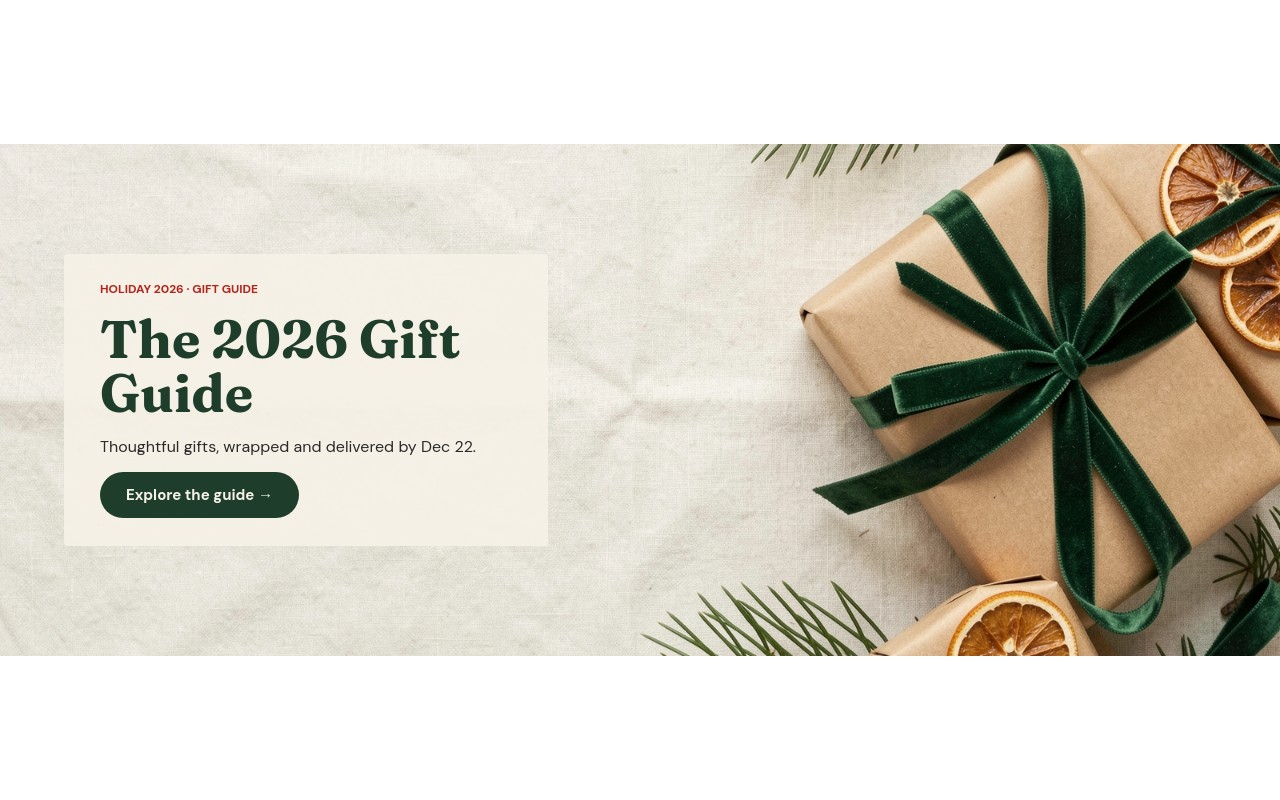
An editorial Christmas gift guide for stores that want to help shoppers choose, not just shout a discount. The cover sets "The 2026 Gift Guide" in Fraunces on a cream card over an overhead flat-lay of kraft-wrapped gifts, green velvet ribbon, pine, and dried orange slices, with the promise "Thoughtful gifts, wrapped and delivered by Dec 22." Four category slides follow: For Her, For Him, For Kids, and Under $50, each pairing a styled flat-lay with a pick count, one line of copy, and a "Shop" link.
The palette stays warm and quiet: cream #f6f1e7, forest green #1f3d2b, and holly red #b3261e used only for small labels and the price anchor. The slider moves with an 800ms slide transition and parallax, autoplays every 5 seconds, and pauses on hover. It reads like a page from a holiday catalog, which is the point - it sits well on a store homepage between Black Friday and Christmas without competing with the sale banners around it.
#What Makes This Template Stand Out
Magazine-Style Split Layout
From 768px up, each category slide splits into a 60% flat-lay photo and a 40% cream text column. On mobile the photo stacks on top and the copy sits below, so every category keeps its image and its message at every screen size.
Four Categories Shoppers Actually Browse
For Her (silk scarf, gold earrings, hand cream, a novel), For Him (leather wallet, watch, crystal glass, wool beanie), For Kids (wooden train, teddy bear, crayons, a picture book), and Under $50 (wool socks, a candle mug, chocolate, red gift tags). Each slide has its own pick count and a direct link, so the guide doubles as navigation into your collections.
Under $50 Price Anchor
The last slide swaps the forest green headline for a holly red "UNDER $50" at up to 64px, animated with number-roll so the figure rolls into place. It is the one loud moment in an otherwise calm guide, and it catches the shoppers who are buying stocking fillers and thank-you gifts.
Cover Card Over a Full-Bleed Flat-Lay
The cover places a 92% opaque cream card on top of the photo with a "HOLIDAY 2026 · GIFT GUIDE" label, the Fraunces headline with a letter-fade entrance, a delivery promise, and an "Explore the guide →" button. The card keeps the text readable over any photo you swap in.
Banner Proportions per Breakpoint
4:5 on mobile, 2:1 at 768px, and 5:2 at 1024px. The guide works as a homepage hero on desktop without pushing the rest of the page below the fold, and still gives the flat-lay enough room on a phone.
#Who Should Use This Template
This template is built for gift, home, and lifestyle stores on Shopify that want a holiday homepage section that sells by suggestion. Each category slide links to a collection, so a shopper who does not know what to buy gets four clear starting points instead of a wall of products.
Boutiques, bookstores, and small businesses can use the guide for in-store and online holiday picks. Change the categories to match your shelves - "For the Cook", "For the Reader", "Stocking Fillers" - and the layout holds without any redesign.
Webflow designers and agencies building holiday campaigns for clients get a ready editorial section that needs only new photos, copy, and links. Paste it into Webflow as native elements, or publish it to CDN and embed it on any platform.
#Best Use Cases
- ✓Shopify homepage gift guide section from late November through Christmas
- ✓Holiday collection landing pages grouped by recipient
- ✓Gift guides for boutiques, bookstores, and home goods stores
- ✓Stocking filler and "under $50" promotions for last-minute shoppers
- ✓Holiday email landing pages that mirror a newsletter gift guide
- ✓Corporate and client gifting pages with curated categories
- ✓Webflow agency holiday campaigns for retail clients
- ✓Mother's Day, Father's Day, or graduation gift guides reusing the same layout
#How to Customize
- Open the Christmas Gift Guide template in Swiper Studio - you will see five slides: the "The 2026 Gift Guide" cover, For Her, For Him, For Kids, and Under $50.1
- Update the cover - change the "HOLIDAY 2026 · GIFT GUIDE" label, the headline, and the "wrapped and delivered by Dec 22" promise to match your own shipping cutoff.2
- Swap the flat-lays in the media panel with your own product photography. Landscape shots around 3:2 fit the 60% photo column on tablet and desktop.3
- Rename the categories and update the pick counts (12, 14, 10 by default) and the one-line descriptions under each headline.4
- Point each link block ("Shop for her →", "Shop for him →", "Shop for kids →", "Shop under $50 →") at the matching collection URL.5
- Change the Under $50 price anchor to your own threshold - the number-roll animation re-runs with the new value.6
- Adjust colors in the style panel if your brand uses a different green or red, and check the 768px and 1024px breakpoints in the responsive preview.7
- Publish to CDN and paste the embed snippet, add it to Shopify with the Swiper Studio app, use Paste into Webflow, or export to HTML, React, Vue, Next.js, or a Web Component.8
#Frequently Asked Questions
- Can I change the gift categories and pick counts?
- Yes. The default guide runs a cover plus four category slides: For Her (12 picks), For Him (14 picks), For Kids (10 picks), and Under $50. Every label, headline, line of copy, and link is editable. Rename a category to "For the Host" or "For Pets", update the pick count, and duplicate a slide if you need a fifth category.
- How do I use my own product photos?
- Replace each flat-lay in the media panel. On tablet and desktop the photo fills the left 60% of a split layout and the copy sits in the right 40%, so landscape shots around 3:2 work best. On mobile the photo stacks above the copy. Overhead flat-lays on a plain surface keep the calm, magazine-like look of the original.
- Does the guide look right on phones?
- The slider changes proportion per breakpoint: 4:5 on mobile, 2:1 from 768px, and 5:2 from 1024px, so it works as a homepage banner on desktop without taking over the whole screen. Headline sizes step up from 34px on mobile to 54px on desktop, and the navigation arrows only appear from 768px up.
- Which fonts and colors does the template use?
- Fraunces in bold for the headlines and DM Sans for labels, body copy, and buttons, both loaded from Google Fonts. The palette is cream #f6f1e7, forest green #1f3d2b for headlines and buttons, holly red #b3261e for small labels and the Under $50 price anchor, and charcoal #2a2a2a for body text.
- How do I add the gift guide to Shopify, Webflow, or WordPress?
- On Shopify, install the official Swiper Studio Shopify app and add the published slider to any page as a native theme block from the theme editor. In Webflow, use "Paste into Webflow" to add it as native elements. On WordPress, Squarespace, Wix, or any other site, publish to CDN and paste the embed snippet. You can also export to HTML, React, Vue, Next.js, or a Web Component.
#Related Templates
#Related Resources
- Swiper Studio for Ecommerce Stores
- Swiper Studio for Shopify
- Swiper Studio for Hero Sections
- Swiper Studio for Small Businesses
Ready to Build Your Slider?
Pick a template, customize it visually, and export production-ready code to React, Vue, Next.js, HTML, Webflow, and more. No coding required.