Black Friday Week
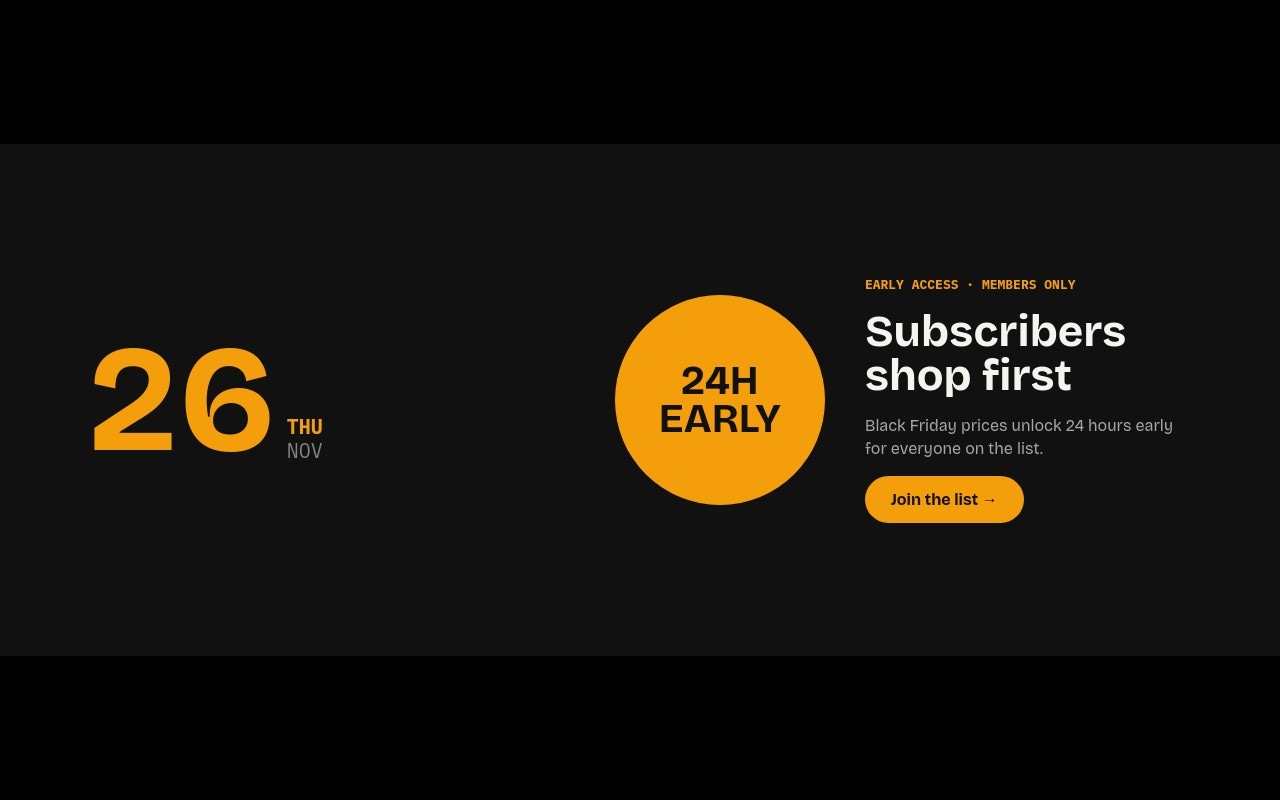
A day-by-day schedule for the whole Black Friday weekend, built as a type-led hero banner. Each of the five slides is one day: a huge date number that rolls into place, a mono weekday label, a circle sticker or product cutout, and the offer for that day. The sequence runs Thursday Nov 26 (subscriber early access), Friday Nov 27 (Black Friday, 50% off everything), Saturday Nov 28 (Small Business Saturday free gift), Sunday Nov 29 (Bundle Sunday, buy 2 get 1 free), and Monday Nov 30 (Cyber Monday, extra 20% with code CYBER20).
The base is a near-black #111111 with #f5f5f0 type, and every day gets its own accent: amber #f59e0b for Thursday, white #fafafa on pure black #000000 for Friday, green #16a34a for Saturday, violet #8b5cf6 for Sunday, and cyan #22d3ee for Monday. Bricolage Grotesque carries the dates and headlines, IBM Plex Mono carries the weekday labels, kicker lines, and the promo code. The slider uses Swiper's slide effect at 600ms with 5-second autoplay and loop, so shoppers see the full week of offers without clicking.
#What Makes This Template Stand Out
One Slide per Day, One Color per Day
The accent color changes with the day - amber, white, green, violet, cyan - while the dark base stays constant. Shoppers can tell at a glance which day they are looking at, and the five slides read as one campaign instead of five unrelated banners.
Number-Roll Dates as the Anchor
The date numbers (26, 27, 28, 29, 30) are the biggest element on every slide - 104px on mobile, 112px at 768px, and 150px at 1024px - and animate in with number-roll on each slide change. Offer headlines follow with a letter-fade, circle stickers pop in, and the CTA fades in last.
Circle Stickers and Product Cutouts
Each day has a circle next to the date. Thursday, Saturday, and Monday use solid accent circles with two-line text ("24H EARLY", "FREE GIFT", "EXTRA 20%"). Friday and Sunday hold product cutouts - an orange and white sneaker on a dark gray circle and lilac headphones on a deep violet circle.
Promo Code Box on Cyber Monday
The Monday slide pairs a cyan "Shop now" button with an outlined code box reading "USE CODE / CYBER20" in IBM Plex Mono. It is a separate element, so you can copy it to any other day if your Thursday or Sunday offer also needs a code.
Mobile Portrait to Wide Desktop Banner
The slider is 4:5 on phones with the date stacked above the offer, then switches to a 2:1 banner at 768px and a 5:2 banner at 1024px with the date on the left and the offer on the right. Arrows appear from 768px up, and bullets stay visible at every size.
#Who Should Use This Template
This template is built for Shopify and ecommerce stores running a multi-day Black Friday to Cyber Monday campaign. Instead of swapping your homepage hero every morning, you publish one slider that shows the whole week's schedule at once, so shoppers on Thursday already know what Friday and Monday bring.
Marketers and agencies planning holiday campaigns for several clients get a structure that is quick to rebrand. Change the five accent colors, retype the offers, and swap the two product cutouts, and the same layout works for a fashion store, an electronics shop, or a beauty brand.
Webflow designers building a sale landing page can paste the slider in as native elements and use it as the hero above a product grid, then reuse it after the season for any other day-by-day promotion.
#Best Use Cases
- ✓Homepage hero for a Black Friday to Cyber Monday 2026 campaign
- ✓Sale landing page that lists every day of the promotion in one place
- ✓Early-access teaser for newsletter subscribers ahead of Black Friday
- ✓Cyber Monday promo code banner with a copyable code box
- ✓12 days of deals or advent-style daily offer calendars
- ✓Prime Day, back-to-school week, or spring sale schedules
- ✓Multi-day in-store and online event announcements
- ✓Agency holiday campaign starter reused across several client stores
#How to Customize
- Open the Black Friday Week template in Swiper Studio - you will see five slides, one per day from THU 26 to MON 30.1
- Retype the date numbers and weekday labels if your campaign runs on different days, and delete or duplicate slides to match the number of days in your sale.2
- Rewrite each offer: the mono kicker line (for example "BLACK FRIDAY · SITEWIDE"), the headline, and the short supporting sentence.3
- Change the accent color per slide - the date, weekday label, kicker, circle sticker, and CTA all use the day color, so update them together.4
- Swap the sneaker and headphones cutouts for your own transparent product images in the media panel, or turn those circles into text stickers like the other days.5
- Update the code in the Cyber Monday "USE CODE" box, and point every CTA link block at the right collection or signup page.6
- Check the 4:5 mobile layout and the 2:1 and 5:2 banners at 768px and 1024px, adjusting font sizes per breakpoint if your headlines are longer.7
- Publish to CDN and add it through the Shopify app, use Paste into Webflow, or export to HTML, React, Vue, Next.js, or Web Component.8
#Frequently Asked Questions
- Which days and offers does the template cover?
- Five slides, one per day of Black Friday week 2026: THU 26 (early access for subscribers), FRI 27 (50% off everything), SAT 28 (Small Business Saturday free gift), SUN 29 (Bundle Sunday, buy 2 get 1 free), and MON 30 (Cyber Monday, extra 20% with code CYBER20). Every date, weekday label, headline, and CTA is plain editable text, so you can rename days, change offers, or drop a slide if your promotion runs fewer days.
- Can I reuse it for a different sale week next year?
- Yes. The structure is a generic day-by-day schedule, not a Black Friday-only layout. Retype the date numbers and weekday labels and the slider works for a 12-day holiday countdown, a Prime Day week, a spring sale, or next year's Black Friday. Each day keeps its own accent color, which you can change per slide.
- How does the layout change between mobile and desktop?
- The slider is 4:5 on mobile with the date on top and the offer stacked below. At 768px it switches to a 2:1 banner and at 1024px to a 5:2 banner, with the date on the left and the circle sticker plus offer copy on the right. Navigation arrows appear from 768px up; bullet pagination is always on.
- Can I swap the sneaker and headphones for my own products?
- Yes. The Friday sneaker and the Sunday headphones are transparent cutouts inside circle blocks. Replace them with your own product cutouts in the media panel. On Thursday, Saturday, and Monday the circle holds text instead ("24H EARLY", "FREE GIFT", "EXTRA 20%"), so you can mix product days and offer days however you like.
- How do I add it to my Shopify store?
- Install the official Swiper Studio Shopify app, publish the slider, and add it to your homepage or a sale landing page as a native theme block from the theme editor. For Webflow, use Paste into Webflow to add it as native elements. For Squarespace, Wix, WordPress, or any other site, publish to CDN and paste the embed snippet.
#Related Templates
#Related Resources
- Swiper Studio for E-commerce Stores
- Swiper Studio for Shopify
- Swiper Studio for Hero Sections
- Swiper Studio for Marketers
Ready to Build Your Slider?
Pick a template, customize it visually, and export production-ready code to React, Vue, Next.js, HTML, Webflow, and more. No coding required.