Better Defaults Swiper Template
A smarter starting point than raw Swiper defaults. This template takes the minimal default slider and applies the small but meaningful improvements that experienced developers always make — better spacing between slides, smoother transition timing, and commonly used navigation elements pre-enabled. Instead of configuring the same baseline tweaks on every project, start here and jump straight to the parts that make your slider unique.
#What Makes This Template Stand Out
Curated Improvements Over Raw Defaults
Every change in this template is intentional and battle-tested. The spacing, transition speed, and enabled features reflect the configuration choices that Swiper developers make on the vast majority of real-world projects. It is not opinionated design — it is practical common sense applied upfront.
Polished Transitions Out of the Box
The transition speed has been tuned to feel smooth and responsive without being sluggish. Raw Swiper defaults are functional but not optimized for perceived quality. This template applies timing adjustments that make every slide change feel deliberate and polished.
Sensible Spacing
Slide spacing is pre-configured for clean visual separation. The default Swiper uses zero gap between slides, which works for some layouts but looks cramped for most. The better defaults template adds breathing room that works well across content types — images, cards, text blocks, and mixed media.
Navigation Ready
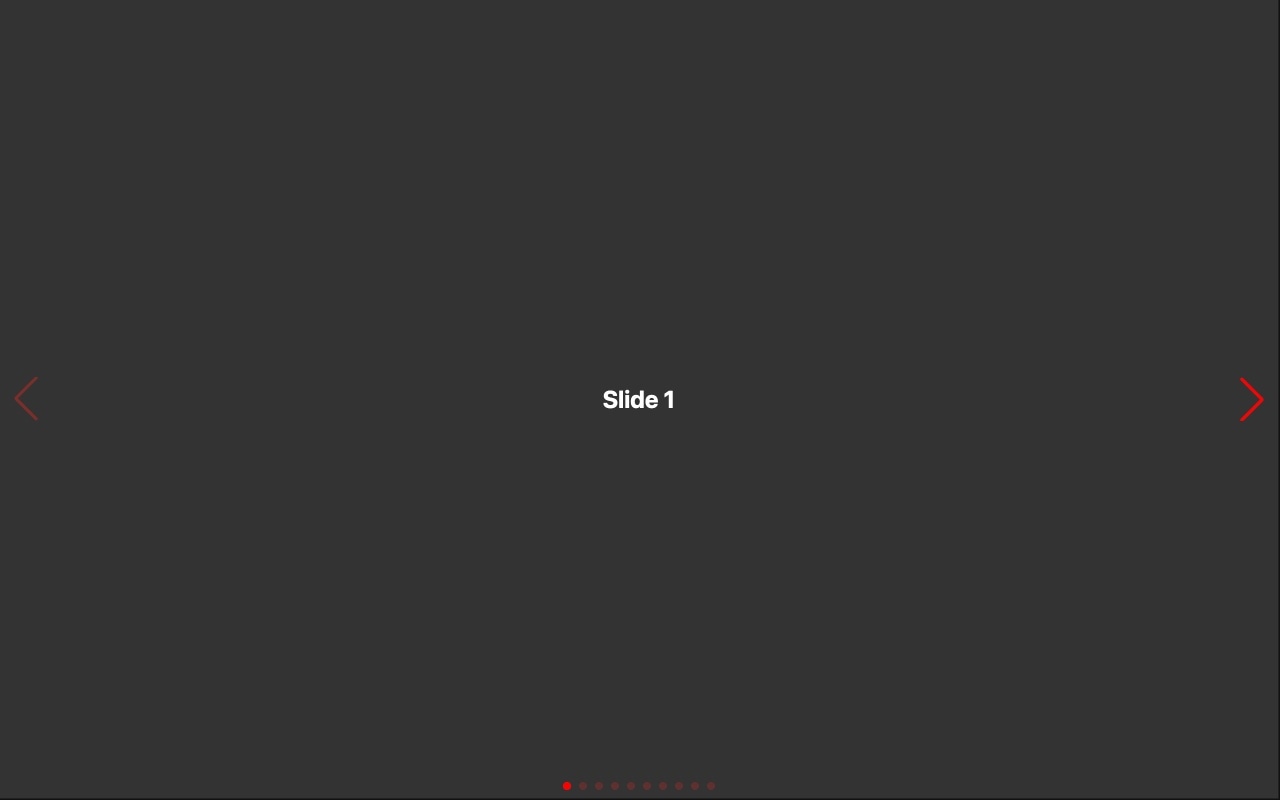
Common navigation elements are already enabled so you can see your slider working with real controls from the start. Navigation arrows and pagination dots are configured with clean default styling, ready for you to customize colors and positioning to match your design.
Still Minimal, Still Fast
Despite the improvements, this template stays lean. Only universally useful features are pre-enabled — nothing exotic, nothing heavy. The exported code remains small and performant, with no unnecessary overhead from features you will not use.
#Who Should Use This Template
Developers who want a practical head start without a pre-designed look should reach for better defaults. If you have used Swiper before, you know the first ten minutes of every project involve the same baseline configuration — adjusting spacing, tuning transitions, enabling pagination. This template skips that repetitive setup so you can focus on the unique aspects of your current build.
Designers and non-developers building sliders for the first time will find this template more approachable than the raw default. The pre-enabled navigation and refined spacing mean the slider looks and feels like a real product from the moment you open it in the editor. You can start adding content immediately without wondering why there are no arrows or why the slides are touching edge to edge.
Teams working on multiple projects benefit from having a consistent, sensible starting point. Instead of each team member configuring their own baseline, the better defaults template provides a shared foundation that ensures a minimum quality bar across all slider builds. Customize from there, but start from the same solid ground.
#Best Use Cases
- ✓Any new slider project where you want a head start on common configuration without adopting a full design
- ✓Rapid prototyping sessions where you need a functional, good-looking slider in minutes rather than hours
- ✓Client projects where the baseline needs to look polished before you start applying brand-specific customizations
- ✓Multi-slider websites where consistency across different slider sections is important
- ✓Teams standardizing on a shared starting template to ensure baseline quality across projects
- ✓Situations where the raw default template feels too bare but pre-designed templates feel too opinionated
#How to Customize
- Click 'Use This Template' to load the better defaults slider into Swiper Studio's visual editor1
- Replace the placeholder slide content with your own images, text, and media — the improved spacing and transitions will apply automatically to your content2
- Adjust the navigation styling — change arrow colors, pagination dot colors, size, and positioning to match your brand3
- Fine-tune the transition speed and spacing if the defaults do not perfectly match your design — the values are a starting point, not a constraint4
- Add additional features as needed: autoplay, loop mode, keyboard navigation, scrollbar, or transition effects like fade or coverflow5
- Configure responsive breakpoints to adapt slides per view, spacing, and navigation for different screen sizes6
- Export to HTML, React, Vue, Next.js, Web Component, or Webflow — or publish to CDN for instant embedding7
#Frequently Asked Questions
- How is this different from the default template?
- The default template uses Swiper's raw out-of-the-box settings with no modifications. The better defaults template applies a curated set of improvements — things like adjusted spacing between slides, smoother transition timing, and commonly enabled features like pagination. Think of it as the settings most developers end up choosing anyway, pre-applied so you skip the initial configuration step.
- What specific defaults have been changed?
- The template includes refined slide spacing for cleaner visual separation, an optimized transition speed that feels more polished than the raw default, and common navigation elements pre-enabled. These are the adjustments that experienced Swiper users typically make on every project — small tweaks that collectively make a noticeable difference in slider quality.
- Can I still customize everything in the editor?
- Yes. Every parameter is fully adjustable. The better defaults are just a starting point — you can change, disable, or override any setting in the visual editor. If you prefer the raw default value for any parameter, you can reset it with a click.
- Is this template suitable for production use as-is?
- It is much closer to production-ready than the raw default template. The spacing, transition speed, and feature set are calibrated for real-world use. Most projects will still need custom content, branding, and possibly additional features, but the foundation is solid enough to ship with minimal changes.
- What export formats does this template support?
- All Swiper Studio formats: standalone HTML, React component, Vue component, Next.js project, Web Component, and native Webflow element. You can also publish to CDN for instant iframe embedding on any platform.
#Related Templates
#Related Resources
Ready to Build Your Slider?
Pick a template, customize it visually, and export production-ready code to React, Vue, Next.js, HTML, Webflow, and more. No coding required.