Pricing Plans Slider Template - Light Theme
A clear, well-structured pricing section can be the difference between a visitor who bounces and one who signs up. When people reach your pricing page, they have already decided they are interested - now they need to understand their options quickly and feel confident about their choice. The layout, hierarchy, and clarity of your pricing cards matter more than most teams realize.
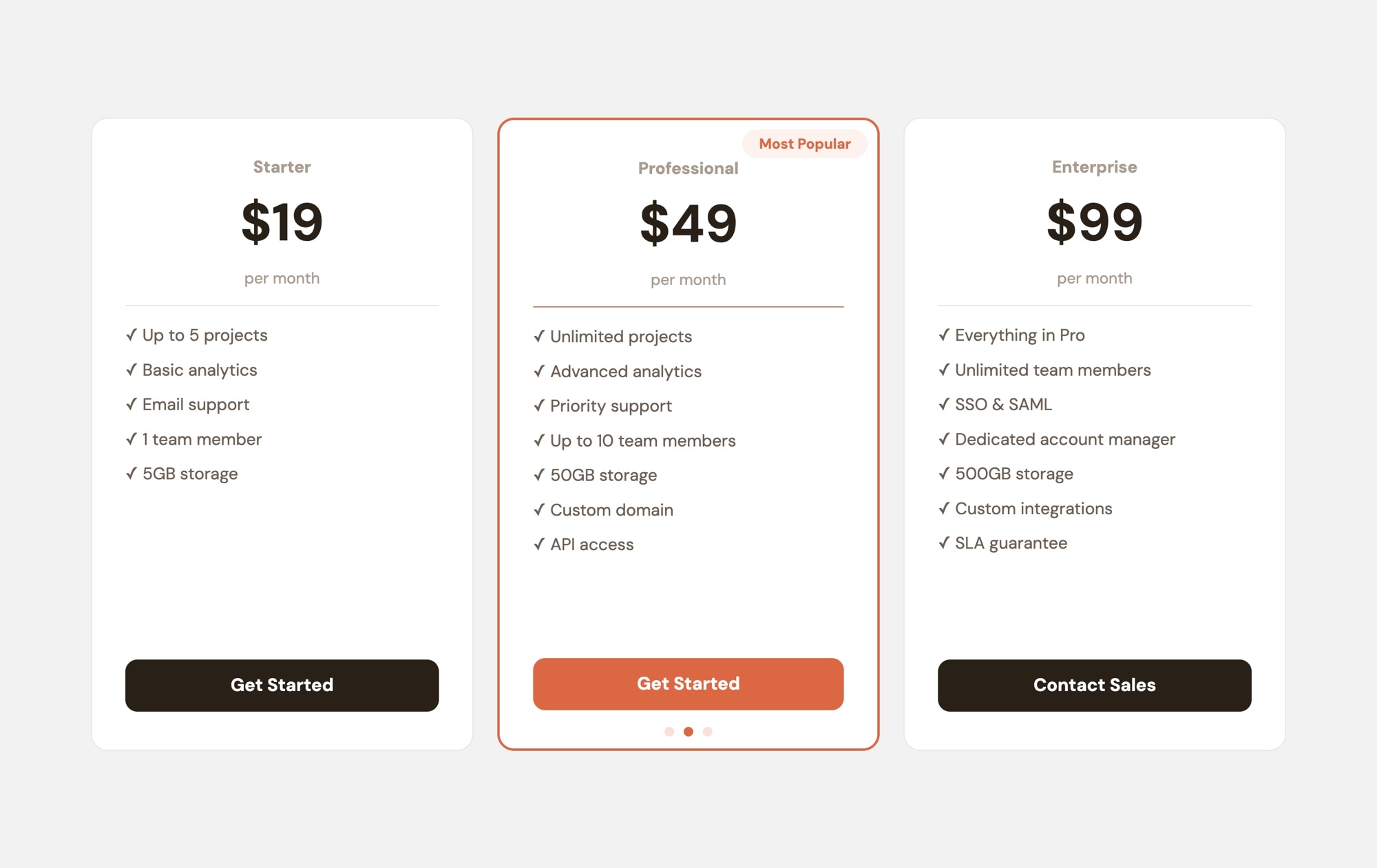
This light-themed pricing plans template presents three tiers on a clean white background: Starter at $19/month, Professional at $49/month with a coral "Most Popular" badge, and Enterprise at $99/month. Each card includes the plan name, monthly price, a feature checklist with clear checkmarks, and a prominent CTA button. The Professional card draws attention with a coral accent, making it the natural focal point without overwhelming the minimal aesthetic. The result is a pricing section that feels open, trustworthy, and easy to scan - qualities that matter when you are asking someone to commit to a purchase.
#What Makes This Template Stand Out
Clean, Minimal Design That Builds Trust
The light background, generous whitespace, and simple card layout create a pricing section that feels transparent and approachable. Visitors can focus on comparing plans without visual clutter competing for their attention. Clean design signals that your product is straightforward and honest.
Coral Accent on the Recommended Plan
The Professional card features a warm coral 'Most Popular' badge and accent styling that stands out against the neutral white background. The color choice is intentional - coral is attention-grabbing without being aggressive, guiding visitors toward your recommended tier with a gentle visual nudge.
Scannable Feature Checklists
Each card includes a structured list of features with checkmark indicators. Visitors can compare what is included in each tier by scanning vertically down each card. The light theme ensures maximum readability for feature text, making comparison effortless even on smaller screens.
Responsive Pricing That Works on Every Device
Three cards sit side by side on desktop for easy comparison. On mobile, the layout shifts to a swipeable slider so visitors can browse each tier with a natural thumb swipe. The light design stays crisp and readable on every screen size without losing its clean aesthetic.
#Who Should Use This Template
This template is ideal for businesses with light-themed or white-background websites. If your marketing site, landing page, or product page uses a clean, minimal design language, this pricing slider integrates without visual friction. It matches the aesthetic of modern SaaS marketing pages, professional service sites, healthcare and wellness platforms, education products, and consumer subscription services where a friendly, approachable look builds trust.
Startups and small businesses that want their pricing section to feel professional and polished will benefit from this template's simplicity. There is no heavy design lifting required - the template already looks production-ready. Swap in your plan names, prices, and features, adjust the accent color to your brand, and you have a pricing section that competes with anything a design agency would produce.
Teams that need to update pricing frequently - during launches, seasonal promotions, or tier restructuring - can edit the template in Swiper Studio and republish to CDN without touching their website code. The ability to iterate on pricing presentation without developer involvement makes this template practical for fast-moving teams.
#Best Use Cases
- ✓SaaS and software product pricing pages with a clean, professional aesthetic
- ✓Service business websites presenting consulting, coaching, or support packages
- ✓Membership and subscription platforms comparing free, pro, and premium tiers
- ✓Education and course platforms displaying student, professional, and team plans
- ✓Healthcare, wellness, and lifestyle brands with a friendly visual identity
- ✓E-commerce subscription boxes comparing plan sizes and frequencies
- ✓Landing pages for product launches where clear pricing drives conversions
- ✓White-background websites that need a pricing section matching their minimal design
#How to Customize
- Open the template in Swiper Studio. Each pricing tier is a slide containing text elements for the plan name, price, and feature list, plus a link block for the CTA button.1
- Replace the tier names, prices, and feature descriptions with your own. Add or remove feature list items to accurately represent each plan.2
- Update the accent color on the 'Most Popular' badge and the Professional card's highlighted elements. Select the element and change its background or text color in the style panel to match your brand.3
- Set the CTA button links - point 'Get Started' to your signup page and 'Contact Sales' to your sales or demo booking form. Update button text if needed.4
- Add or remove tiers by duplicating or deleting slides. If you offer two plans instead of three, delete one slide. If you offer four, duplicate and customize.5
- Configure responsive breakpoints to show 3 cards on desktop, 2 on tablet, and 1 on mobile. Adjust font sizes and padding at each breakpoint for optimal readability.6
- Optionally add entrance animations to the cards - a subtle fade or pop animation creates a polished experience when the pricing section scrolls into view.7
- Publish to CDN and embed on your website with the provided snippet. Update pricing anytime by editing in the studio and republishing.8
#Frequently Asked Questions
- Can I switch between monthly and annual pricing?
- The template displays one pricing structure at a time. To show both monthly and annual options, you can create two separate sliders - one for each billing cycle - and toggle visibility with a simple tab or button on your page. Alternatively, include both prices on each card as separate text elements.
- How do I change the coral accent to a different color?
- Select the "Most Popular" badge or the accent elements on the Professional card and update the background color in the style panel. You can enter any hex color value to match your brand. All text colors, card backgrounds, and border colors are editable the same way.
- Can I add icons or images to the feature list items?
- Yes. Add image elements alongside each feature text item inside the slide. You can use small icon images next to each feature for a more visual checklist, or add a product illustration at the top of each pricing card.
- Does this template work on a white website background?
- Yes. The light theme is designed to integrate naturally with white and light-colored website backgrounds. The cards use subtle borders and shadows to create separation without needing a contrasting background section.
- Can I use this pricing slider inside a Webflow project?
- Yes. Use Paste into Webflow to drop the slider into your Webflow project as native elements, or publish to CDN and embed it with a code snippet. Both methods work - native elements give you tighter integration with Webflow layouts.
#Related Templates

#Related Resources
- Swiper Studio for Landing Pages
- Swiper Studio for Small Businesses
- Swiper Studio for Marketers
- Swiper Studio for Agencies
Ready to Build Your Slider?
Pick a template, customize it visually, and export production-ready code to React, Vue, Next.js, HTML, Webflow, and more. No coding required.