
#Custom Fonts and Per-Element Font Family
Typography is one of the fastest ways to make a slider feel like your slider. Until now, Swiper Studio supported the full Google Fonts catalog, but only at the project level - every text element shared the same family. That worked for most cases, but stopped short when a project called for a custom brand font, or for mixing display and body fonts within the same slider.
Today's update closes both gaps: you can upload custom .woff2 font files to your Asset Library, and you can set font family on individual text elements.
#Upload Custom Fonts to the Asset Library
The Asset Library now has a dedicated Fonts section alongside Colors and Images. Drop in any .woff2 file, give it a name, and it becomes available to every project in your account or team.
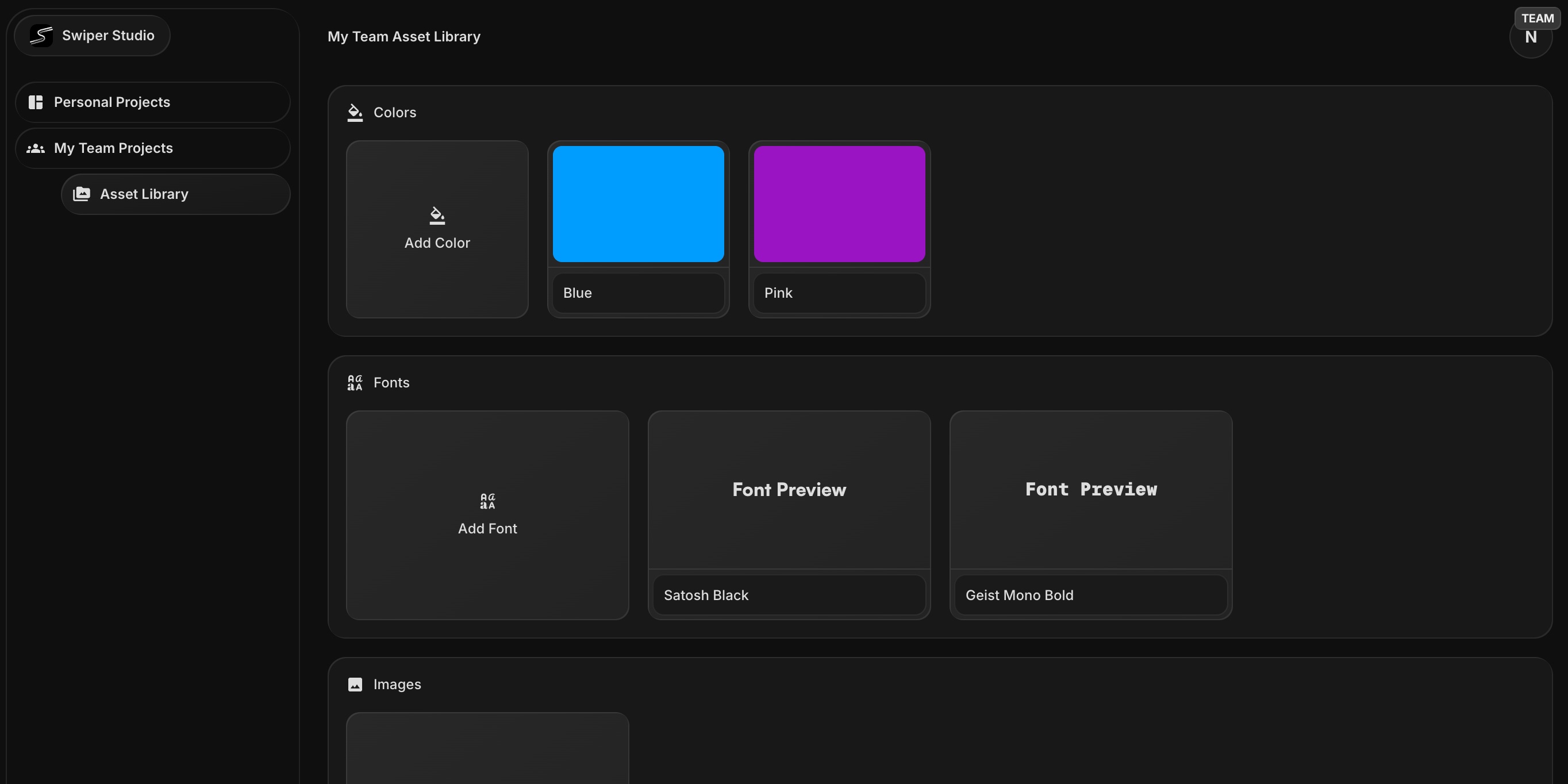
Each font is previewed in its own face, so brand fonts like Satoshi Black or Geist Mono Bold are instantly recognizable in the library grid. Uploads are shared across your team, so everyone pulls from the same approved typography set - no more passing font files around in chat.
#Custom Fonts Appear First in the Picker
Once uploaded, your custom fonts show up at the top of the font family picker, above the Google Fonts list. Pick them the same way you always pick a font - the preview updates instantly, and the font is bundled automatically when you export or publish.
#Set Font Family Per Text Element
Previously, font family was a project-wide setting. Now it is available on every individual text element too.
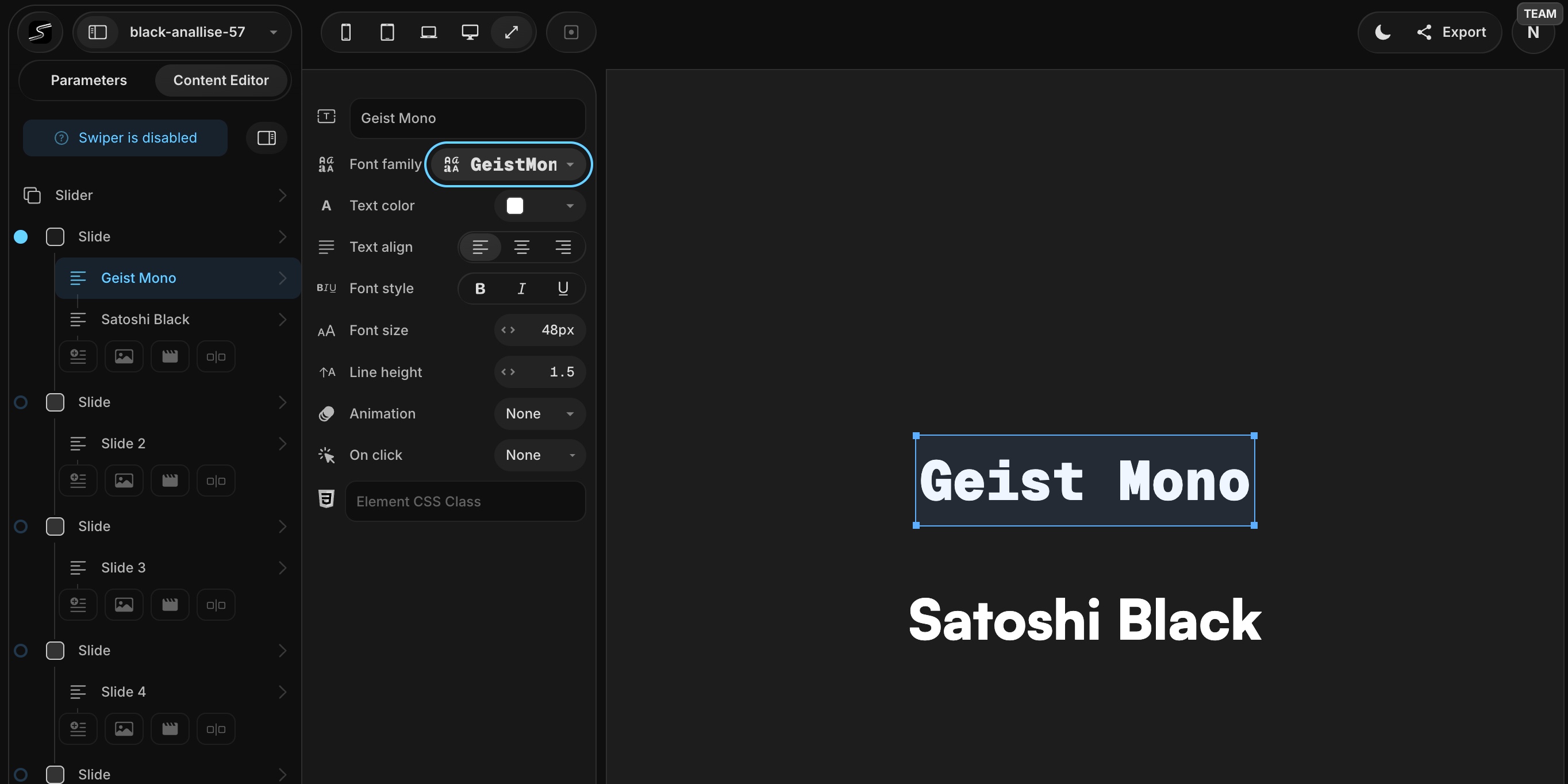
Select any text in the Content Editor and you will find a new Font family control right next to size, color, and style. Override the project default for headings, captions, or accent text - mix Satoshi Black for a bold title with Geist Mono for a caption underneath, all on the same slide.
The project-level font family is still there as the default, so simple projects stay simple. When a slide needs more typographic range, the per-element override is one click away.
#What You Can Build
- Brand-accurate sliders - upload the exact
.woff2files your brand guidelines ship with, and match your site typography pixel for pixel - Editorial layouts - pair a display serif for headlines with a clean sans for body copy
- Product and pricing carousels - use a monospace font for specs and numbers while keeping a humanist font for marketing copy
- Portfolios and case studies - give each section its own type personality without spinning up a new project
#Get Started
Open your Asset Library, click Add Font under the Fonts section, and drop in a .woff2 file. Then head into any project, select a text element, and try the new font family picker.
Combined with responsive style breakpoints, element animations, and the AI image tools, Swiper Studio now gives you the full visual control loop - type, motion, imagery, and responsiveness - all in one editor.
Happy designing!