Responsive Style Breakpoints for Slides and Content
Until now, Swiper Studio's breakpoint system let you adjust slider-level parameters - things like slides per view, spacing, and navigation placement - across different screen sizes. That's powerful, but your actual slide content stayed the same regardless of viewport width. Text that looked great on desktop could feel oversized on a phone. A row layout that worked on a laptop might need to stack vertically on a tablet.
Today we're changing that. Slides and every content element inside them - text, images, videos, and blocks - now support per-breakpoint style overrides. This means you have full control over how your content looks and behaves at every screen size, all from the visual editor.
How It Works
The system builds on the existing breakpoint workflow. When you create a project-level breakpoint for a viewport width (768px, 812px, 1024px, 1280px, or 1920px), Swiper Studio now automatically initializes style breakpoints on every slide and child element in your project. From there, you can switch to any breakpoint in the viewport toolbar and customize styles per screen size.
Changes you make at a breakpoint only apply at that viewport width. Everything else inherits from the base (default) configuration - so you only override what needs to change.
What You Can Customize
Slide Styles
Each slide supports the following per-breakpoint overrides:
- Background Color - Use different background tones per device
- Content Direction - Switch between row and column layouts
- Content Position - Adjust alignment (top-left, center, space-between, and more)
- Content Gap - Control spacing between child elements
- Padding - Set horizontal and vertical padding independently
- Border - Adjust border color, width, and radius
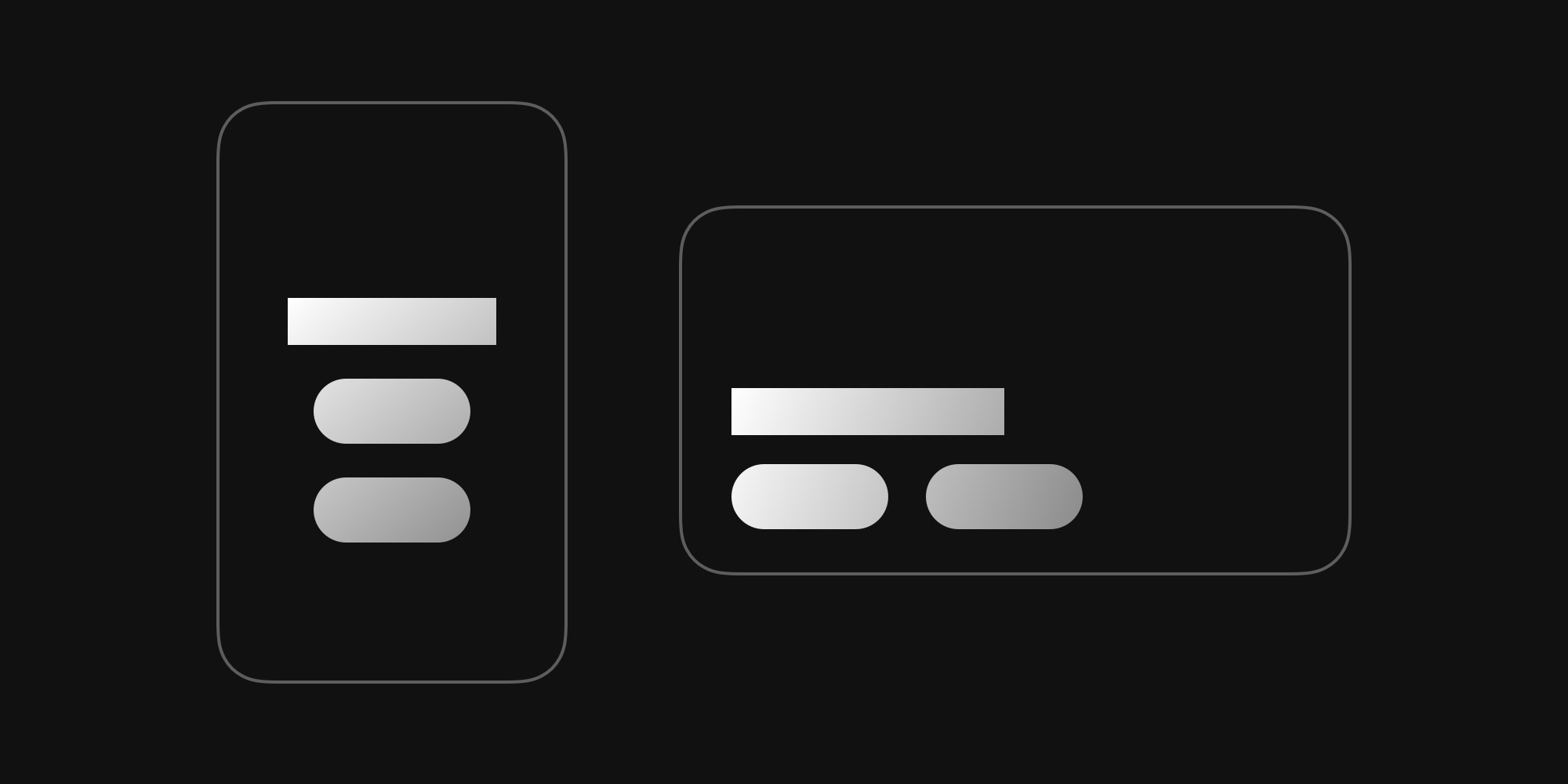
This is especially useful for layout changes. A slide might use a horizontal row layout on desktop but switch to a vertical column stack on mobile - just set contentDirection to "row" at 1920px and "column" at 768px.
Text Elements
- Font Size - Scale text down for smaller screens or up for large displays
- Line Height - Adjust line spacing to match the font size changes
- Text Color - Adapt colors for different backgrounds or contexts
- Text Alignment - Center text on mobile, left-align on desktop
- Font Style - Toggle bold, italic, or underline per breakpoint
Image and Video Elements
- Width and Height - Switch between auto, relative (percentage), and fixed (pixel) sizing
- Border Styling - Adjust border color, width, and radius per breakpoint
Block Elements (Containers)
Blocks get the most flexibility since they're layout containers:
- Content Direction and Position - Rearrange child layouts per breakpoint
- Content Gap - Adjust internal spacing
- Background Color and Blur - Change visual treatment per device
- Width, Max Width, and Height - Full control over sizing modes (auto, relative, fixed)
- Padding and Border - Fine-tune spacing and decoration
Real-World Use Cases
Responsive Typography
Set your heading at 48px on desktop and scale it down to 28px on phones. Adjust line height proportionally. No CSS media queries, no custom code - just switch to the phone breakpoint and change the font size.
Adaptive Layouts
A pricing slide with three cards side by side on desktop can reflow to a single column on mobile. Set the slide's contentDirection to "row" at your desktop breakpoint and "column" at 768px. Adjust padding and gap to match.
Device-Specific Spacing
Generous padding looks great on a 1920px display but eats into content space on a phone. Set comfortable padding values per breakpoint so every screen size feels balanced.
Context-Aware Styling
Change background colors, border radius, or text alignment based on the device. A slide that uses a subtle border on desktop might drop it entirely on mobile for a cleaner look. Text that's left-aligned on wide screens can be centered on narrow ones.
Five Breakpoints, Full Control
Swiper Studio supports five viewport breakpoints that cover the full range of devices:
- 768px - Tablet portrait
- 812px - Phone landscape and small tablets
- 1024px - Tablet landscape
- 1280px - Laptop
- 1920px - Desktop
You only need to create the breakpoints that matter for your design. Each one is optional, and unused breakpoints have zero impact on your exported slider.
Works Across All Export Formats
Just like existing breakpoint support, responsive style overrides export cleanly to every output format - HTML, React, Vue, and Web Components. The generated code includes the necessary responsive logic, so your sliders look great everywhere without any manual adjustments after export.
Get Started
Open Swiper Studio, create or select a project, and add a breakpoint from the viewport toolbar. Switch between breakpoints and start customizing your slide and content styles. Every change you make is instantly reflected in the preview.
Responsive design just got a lot more flexible.