#Element Animations in Swiper Studio
Static sliders are a thing of the past. With the latest Swiper Studio update, every element in your slides - text, images, videos, and blocks - can now animate into view with a wide variety of built-in animations. Pick an effect, tweak the timing, and your slider goes from flat to dynamic in seconds.
#How It Works
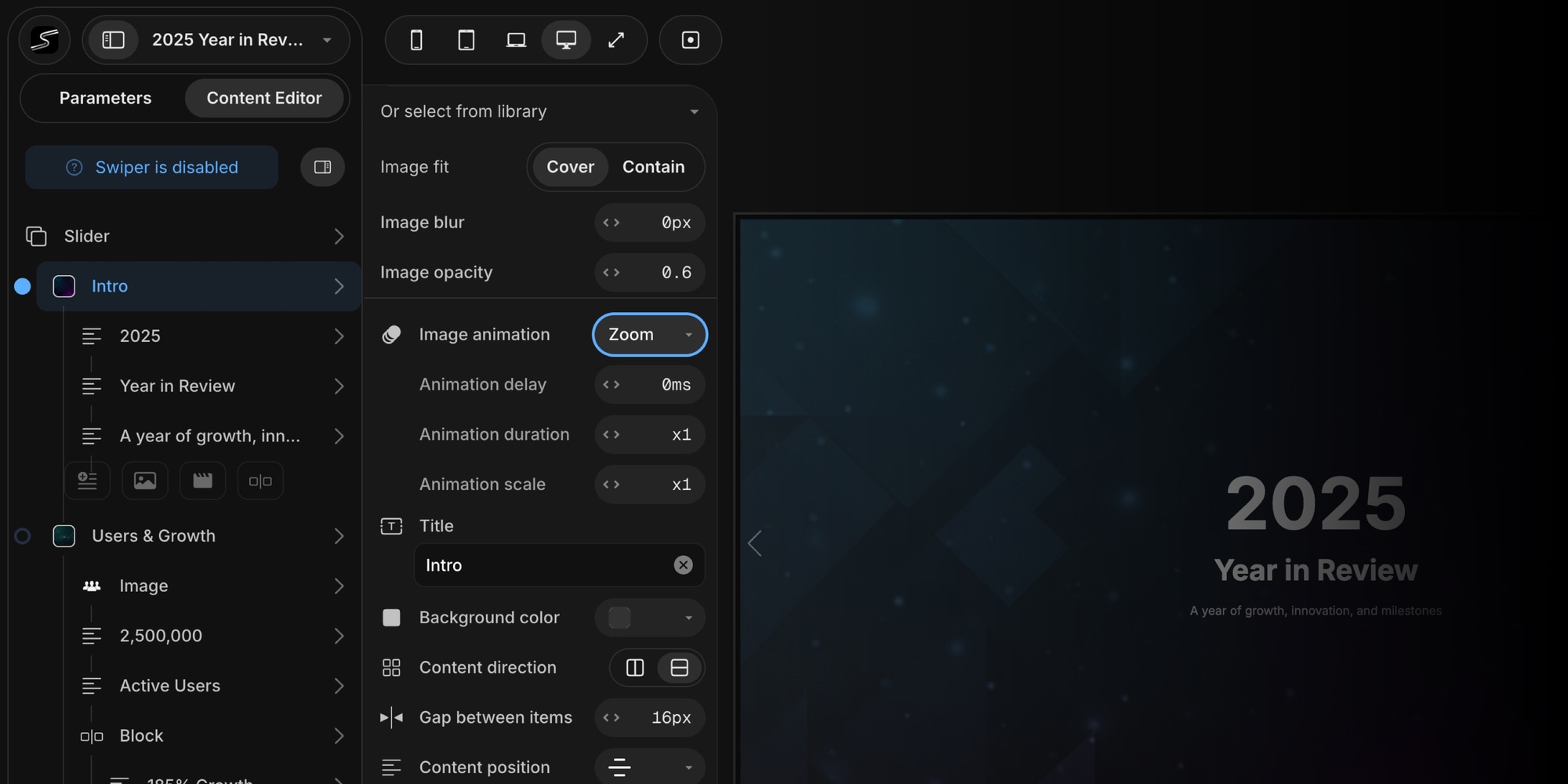
Select any child element inside a slide and open its animation settings. Choose an animation type, set an optional delay, adjust duration and intensity, and you're done. When a slide enters the viewport, its elements animate in with the effect you chose. When the slide leaves, animations reset and are ready to play again on the next visit.
This enter/exit behavior means your animations feel intentional and polished every time a user scrolls or navigates through your slider.
#Animation Types
Swiper Studio ships with many animation types across several categories.
#Entrance Animations
These play once when a slide comes into view:
- Fade - Simple opacity fade-in
- Blur - Fade in from a blurred state
- Pop - Scale up with an overshoot bounce
- Drop - Fall from above with a landing bounce
- Stomp - Scale down then snap back up
- Twirl - Rotate 720 degrees while scaling and fading in
- Succession - Blur, scale, and fade combined into one smooth reveal
#Infinite Animations
These loop continuously while the slide is visible:
- Spin - Continuous 360 degree rotation
- Rotate - Rotation with vertical translation
- Bounce - Vertical bounce loop
- Pulse - Rhythmic scale pulse
- Zoom - Continuous zoom in and out
- Drift X - Horizontal drift
- Drift Y - Vertical drift
#Text-Only Animations
These are exclusive to text elements and create unique character-level effects:
- Typewriter - Characters reveal one at a time, like a classic typewriter
- Letter Fade - Individual letters fade in sequentially
- Letter Scale - Letters scale up one by one
- Letter Blur - Letters emerge from blur in random order
- Number Roll - Numeric characters animate from zero to their target value - perfect for stats and counters
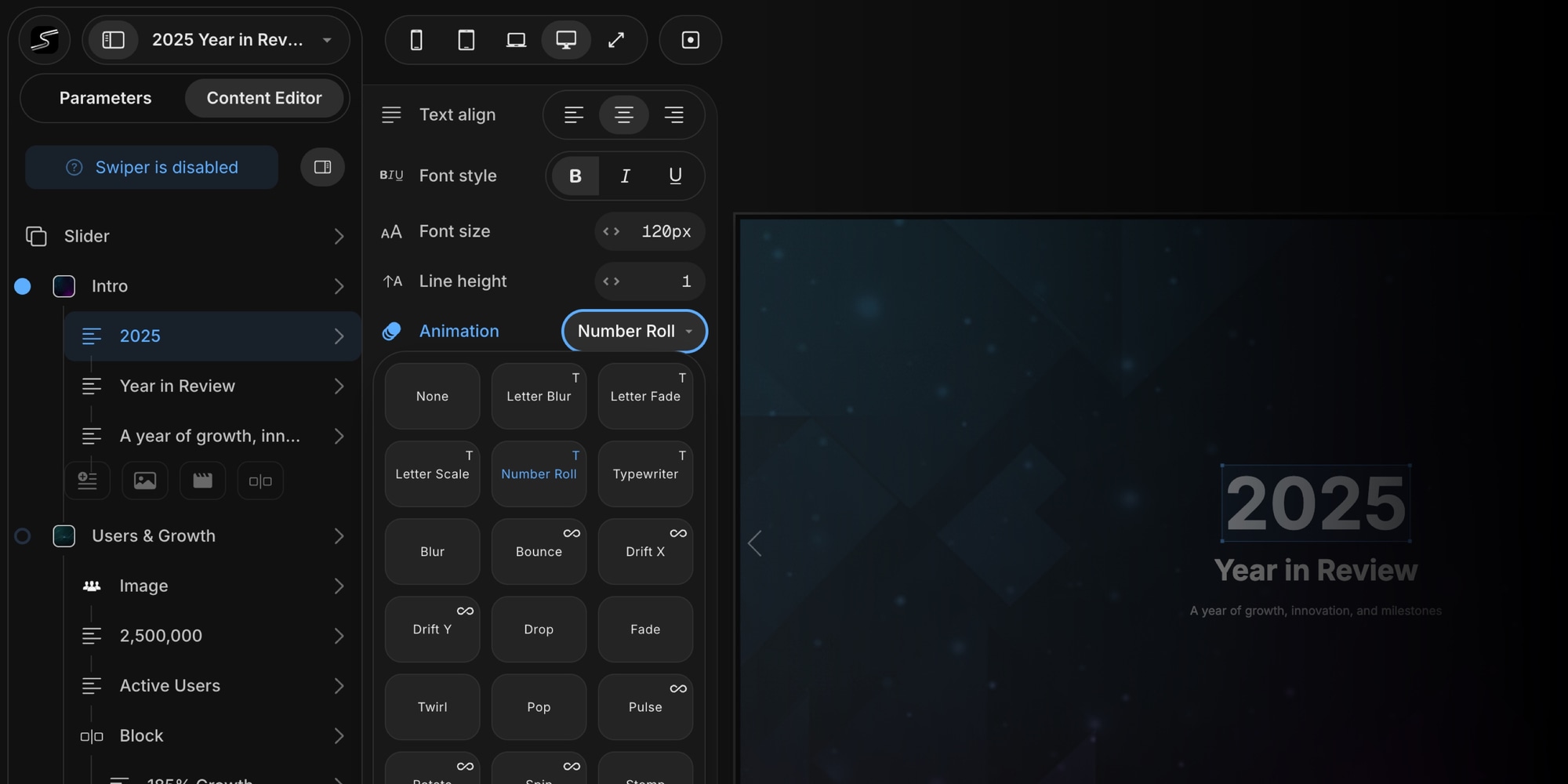
Text animations break your content into individual characters and animate each one independently. The result is a level of dynamism that typically requires custom JavaScript or a dedicated animation library.
#Fine-Tuning Your Animations
Every animation comes with controls to dial in the exact feel you want:
- Delay - Set a delay up to 50 seconds before the animation starts. Stagger multiple elements on the same slide for a choreographed reveal sequence.
- Duration Scale - Speed animations up or slow them down with a 0.1x to 5x multiplier
- Range Scale - Control the intensity of movement - how far elements drift, how high they bounce, how much they rotate
- Reverse - Flip the direction of reversible animations like Spin, Rotate, Twirl, and Drift
Combine delay staggering across multiple elements to create cinematic, sequenced reveals without touching any code.
#Smart Animation Controller
When your project includes animated elements, Swiper Studio automatically bundles a custom Animation Controller module with your exports. This lightweight module handles all the runtime logic:
- Detects when slides enter and exit the viewport
- Plays entrance animations with proper timing and delays
- Manages infinite animation loops - starting, pausing, and resuming as slides become visible
- Resets animations when slides leave view so they replay on return
- Handles text animation teardown and rebuild cleanly
The Animation Controller integrates directly with Swiper's slide progress tracking. It works across all export formats - HTML, React, Vue, and Web Components - with zero extra configuration.
#Use Cases
Element animations open up creative possibilities for every type of slider:
- Landing Pages - Staggered text reveals and image fades for a polished first impression
- Product Showcases - Pop and zoom effects to draw attention to key product features
- Portfolios - Subtle fade and blur transitions for an elegant presentation
- Stats and Dashboards - Number Roll animation for counters, metrics, and data highlights
- Marketing Carousels - Typewriter and letter effects to make headlines stand out
- Event Pages - Sequenced animations to build narrative flow across slides
#Get Started
Open any project in Swiper Studio, select a child element in the Content Editor, and pick an animation. The preview updates in real time so you can experiment until it feels right.
Happy animating!