#Introducing AI Image Tools in Swiper Studio
Building a slider often gets stuck on one thing: finding the right image. The layout is ready, the animations are dialed in, but the hero slide still needs a product shot, a background, or a portrait that does not exist yet.
Today we are fixing that. Swiper Studio now ships with three AI image tools built directly into the editor: Generate, Edit, and Remove Background. No second tab, no extra subscription, no downloads - just click a button next to your image and create exactly what you need.
#Generate Images From a Prompt
Every image slot in Swiper Studio - slide backgrounds and image elements alike - now has a Generate with AI button next to the upload area. Click it, type a prompt, pick an aspect ratio (square, portrait, or landscape), and hit Generate. A few seconds later the result appears in the modal. If you like it, click Use Image and it is placed straight into the slide. If not, tweak your prompt and generate again.
Generation costs 1 credit per image.
#Edit Existing Images With a Prompt
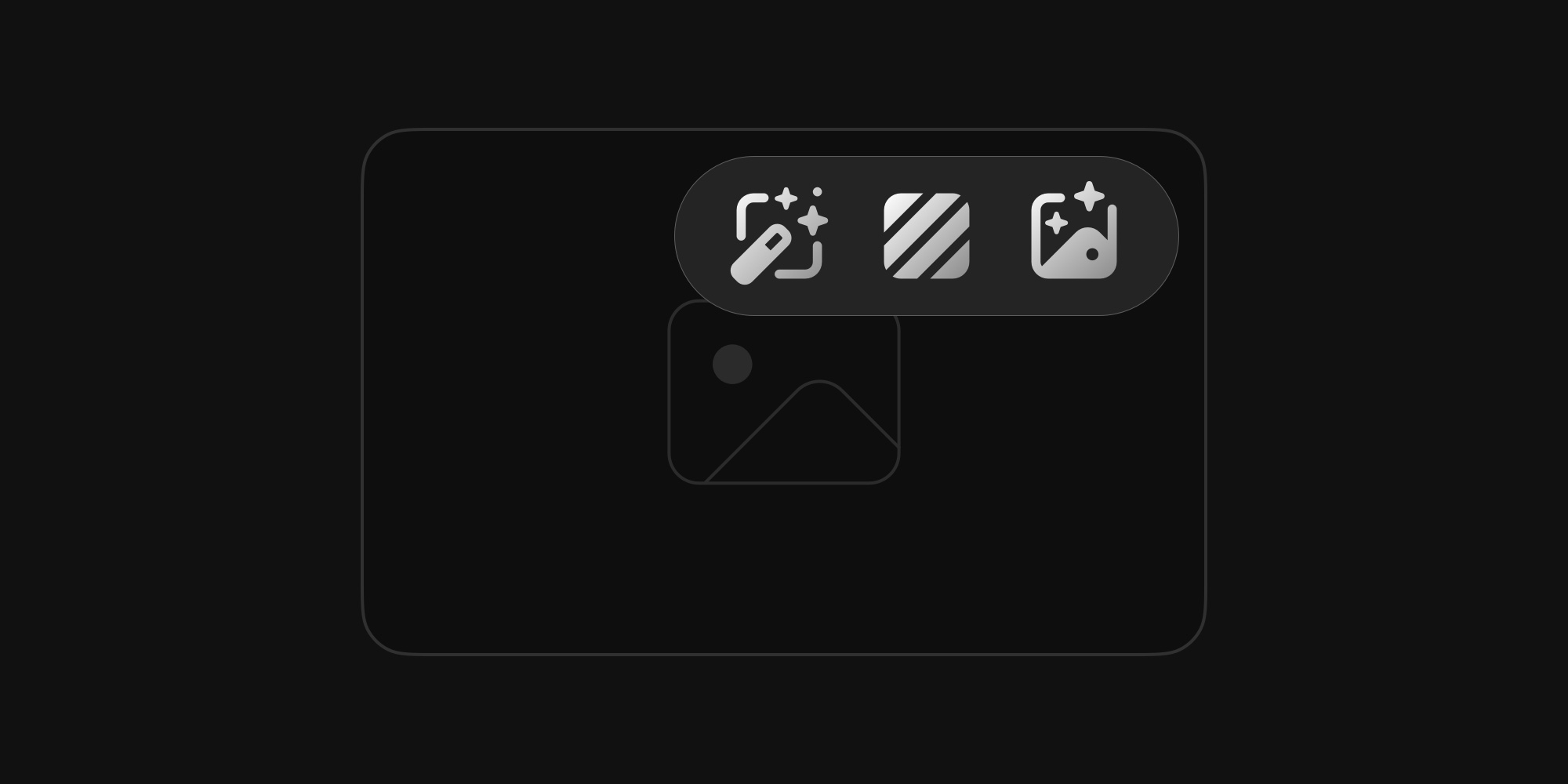
Already have an image in your slide? Three buttons appear on hover: edit, remove background, and generate. Click Edit image with AI, describe the change you want, and generate. The new image replaces the old one inside the modal, and you can keep going - prompt it further to refine, click Reset to start from the original, or click Use Image to accept the current version.
Edit is the most powerful of the three. You can change backgrounds, swap colors, add or remove objects, shift the time of day, change the mood. Because edits stack, you can layer multiple changes on top of each other until the image is exactly right. Editing costs 2 credits per generation.
#Remove Backgrounds With One Click
No prompt, no modal, no waiting on a full generation pass. Click Remove background and the subject is cleanly cut out with a transparent background - ready to layer over a colored slide background, a gradient, or another image.
This is the fastest way to build product carousels, team member showcases, before-and-after sliders, or any layout where the subject needs to sit on top of a custom background instead of its original one. Background removal costs 1 credit.
#Credits, Included in Every Plan
AI tools run on credits, and every paid plan includes them out of the box:
- Individual - 40 credits per month (Monthly), 500 per year (Annual), or 1000 one-time (Lifetime)
- Team - 80 credits per month (Monthly), 1000 per year (Annual), or 2000 one-time (Lifetime)
Every existing paid user has already been credited based on their plan - no action needed. Just open the editor and the AI buttons are ready to use.
Credits refresh at the start of each billing period on annual plans, and never expire on lifetime plans. Top-ups for purchasing additional credits are coming in the next release.
See the pricing page for full plan details.
#Built for Real Slider Work
The three tools were designed around the kinds of images you actually put in sliders:
- Hero slides - generate cinematic background visuals that match your brand
- Product carousels - create clean product shots and remove backgrounds for transparent overlays
- Testimonials and team showcases - generate portraits that stay consistent across slides
- Landing pages - iterate on a hero image with edits until it fits the copy
- E-commerce - produce flat lays, lifestyle shots, or marketing visuals without a photo shoot
- Portfolios - build mood boards and placeholder visuals while the real assets come in
Combined with element animations, responsive style breakpoints, and the MCP server, Swiper Studio is becoming a complete, AI-native design environment for building sliders.
#Start Building
Open any project in Swiper Studio, click an image slot or an image element, and look for the AI buttons. Type a prompt, and go.