#Introducing the Swiper Studio MCP Server: Let AI Agents Build Your Sliders
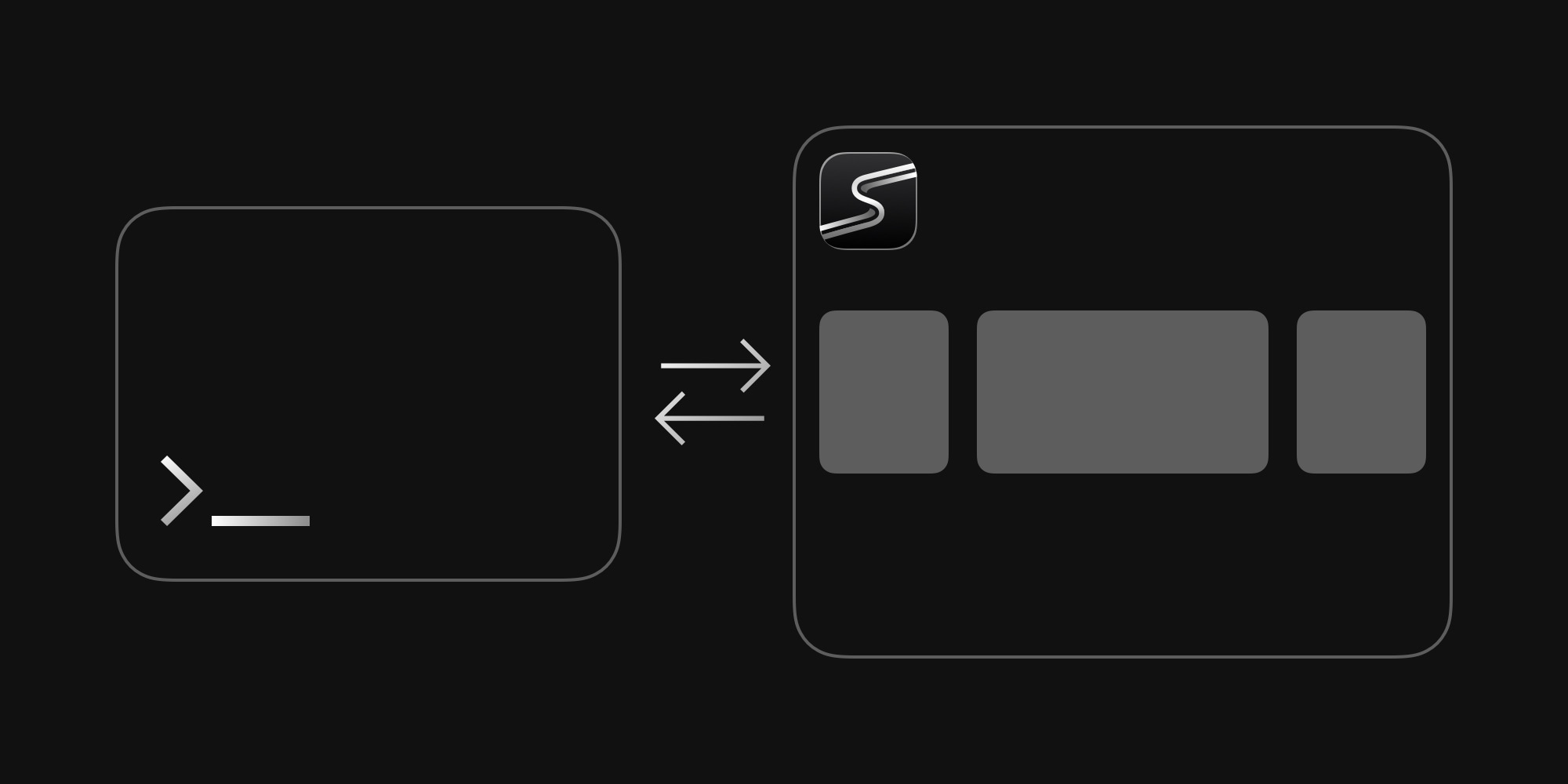
What if you could describe the slider you want in plain English - and have an AI agent build it for you, live, inside Swiper Studio? That is now a reality. We are thrilled to announce one of the biggest features in Swiper Studio's history: a built-in MCP (Model Context Protocol) server that gives AI agents full access to create and edit slider projects.
This is not a limited integration or a simple API wrapper. AI agents connected to Swiper Studio get access to 24 specialized tools covering every capability the editor offers - from creating projects and adding slides to uploading images, configuring responsive breakpoints, and even taking screenshots to verify their own work. If you can build it in Swiper Studio, an agent can build it too.
#What Is MCP and Why It Matters
MCP (Model Context Protocol) is an open standard created by Anthropic that lets AI assistants connect to external tools and services. Think of it as a universal plug that any AI agent can use to interact with your software - reading data, taking actions, and building things on your behalf.
With MCP support, Swiper Studio becomes a first-class tool in the AI agent ecosystem. Whether you use Claude Desktop, ChatGPT, Cursor, Windsurf, VS Code with Copilot, or any other MCP-compatible client - you can connect it to Swiper Studio and start building sliders through conversation.
#See It in Action
Watch an AI agent create a complete, polished slideshow from scratch - picking effects, adding content, uploading images, and configuring responsive breakpoints - all through natural conversation.
#What Agents Can Do
The MCP server exposes 24 tools organized into clear categories. Here is what an AI agent can do once connected:
#Full Project Control
Create new projects from scratch, update Swiper settings (effects, navigation, pagination, autoplay, speed, direction), style the container (size, padding, fonts, aspect ratio), and delete projects when done. Agents have the same level of control you have in the visual editor.
#Slide Management
Add, update, duplicate, and delete slides. Set background colors, background images, or background videos. Configure slide layouts with flexbox-based positioning - content direction, alignment, gap, and padding.
#Rich Content Creation
Add text, images, videos, and container blocks to any slide. Every content element supports full styling: sizing, borders, opacity, blur, and entrance animations. Agents can nest elements inside blocks to create complex layouts, and they can create clickable links by wrapping content in link blocks.
#22 Swiper Effects
Agents can apply and configure any of the 22 Swiper effects: slide, fade, cube, flip, coverflow, cards, panorama, carousel, shutters, slicer, GL, tinder, material, cards-stack, expo, super-flow, creative, and more. Each effect comes with its own set of parameters that agents can fine-tune.
#Responsive Design
Set breakpoints at six screen sizes (375px, 768px, 812px, 1024px, 1280px, 1920px) to control how your slider adapts across devices. Agents can adjust Swiper settings, slide styles, and individual element properties per breakpoint - building truly responsive sliders without you touching a single setting.
#Visual Verification
Agents can take screenshots of any slide at any device size - phone portrait, phone landscape, tablet, laptop, or desktop. This means they can verify their own work visually, catch layout issues, and iterate until the result looks right.
#Image and Video Upload
Agents can request temporary upload tokens and push images or videos directly to the Swiper Studio CDN. Supported formats include JPG, PNG, GIF, WebP, SVG, MP4, WebM, and MOV. There is also a built-in demo image library that agents can use instantly without uploading anything.
#Built-in Reference Documentation
The server includes 12 reference topics that agents can query on demand - covering effects, animations, layout system, color formats, sizing, breakpoints, and more. This means agents always have the context they need to make informed decisions.
#Real-World Use Cases
Here is where things get exciting. The MCP server does not just automate repetitive tasks - it opens up entirely new workflows:
#Build From a Screenshot
Share a screenshot of a slider you saw on another website, a design from Figma, or even a hand-drawn sketch. The agent analyzes the visual and recreates it in Swiper Studio - matching the layout, colors, typography, and effects as closely as possible.
#Generate From Data
Have a product catalog, a list of team members, or a collection of portfolio items? Feed the data to an agent and let it generate a complete slider - one slide per item, with images, titles, descriptions, and proper styling. Update the data, regenerate the slider.
#Describe What You Want
Just tell the agent what you need: "Create a hero slider with 5 slides, each with a full-bleed background image, a headline in white, and a subtle fade effect. Make it autoplay every 4 seconds with pagination dots." The agent handles everything.
#Batch Create Variations
Need the same slider in multiple styles? Ask the agent to create variations - one with a coverflow effect, another with cards, a third with cube. Compare them side by side and pick the winner.
#Design System Compliance
Give the agent your brand guidelines - colors, fonts, spacing rules - and let it build sliders that are on-brand from the start. It can apply consistent styling across all slides and verify the result with screenshots.
#Client Work at Scale
Agencies and freelancers can use agents to spin up slider drafts for multiple clients in parallel. Describe the brief, let the agent build a first version, then refine it manually in the visual editor or through further conversation.
#Accessible Sliders
Tell the agent to enable accessibility features - keyboard navigation, ARIA labels, proper focus management. The agent can configure the A11y module and ensure your slider meets accessibility standards.
#Content Refresh Automation
Connect the MCP server to a workflow that periodically updates slider content - new product photos, seasonal promotions, updated testimonials. Agents can swap out content, adjust layouts, and publish updates without manual intervention.
#Live Editor Integration
When an AI agent is working on your project, Swiper Studio shows a live "Agent is working" overlay in the editor. The editor polls for MCP activity every 3 seconds, so you can watch changes appear in real time as the agent builds your slider. It is like pair-programming, but for design.
#Getting Connected
Setting up the MCP connection takes just a few steps:
- Make sure you have an active Swiper Studio subscription
- Add the Swiper Studio MCP server URL to your AI client's configuration
- Authenticate through the OAuth flow (handled automatically by most clients)
- Start building
Authentication uses OAuth 2.0 with PKCE - the industry standard for secure API access. Your tokens refresh automatically, and you stay in full control of what agents can access.
For detailed setup instructions, configuration examples for popular clients, and the full tool reference, check out the MCP Server Documentation.
#A New Way to Build Sliders
The MCP server represents a fundamental shift in how sliders get built. Instead of clicking through menus and adjusting settings one by one, you can now describe what you want and let an AI agent handle the execution. The visual editor is not going anywhere - it is still the best way to fine-tune details and make precise adjustments. But for getting from zero to a working slider, or for making sweeping changes across slides and breakpoints, agents are incredibly fast.
We believe this is just the beginning. As AI agents become more capable and MCP adoption grows, the line between "designing" and "describing" will continue to blur. Swiper Studio is ready for that future - and now, so are you.
Head over to Swiper Studio and connect your favorite AI agent. We can not wait to see what you build.