#On Click Actions: Make Any Element Interactive
Until now, the only way to make something in your slider clickable was to wrap a block in a link. That was fine for sending users to another page, but it did not help if you wanted a button that jumps to the next slide, a thumbnail that opens a specific slide, or a call-to-action that triggers your own JavaScript. With the latest Swiper Studio update, any slide or child element can become a fully interactive trigger - with zero code.
#How It Works
Select any slide, text, image, video, or block in the Content Editor and open its Interaction panel. Pick an action, fill in the value if one is needed, and you are done. The click handler is attached automatically in every export format.
Clicks on children stop propagating, so a button inside a slide will not accidentally fire the slide-level handler too. And because handlers only run at runtime, you can still select and style elements freely inside the editor preview without triggering anything.
#Five Actions to Choose From
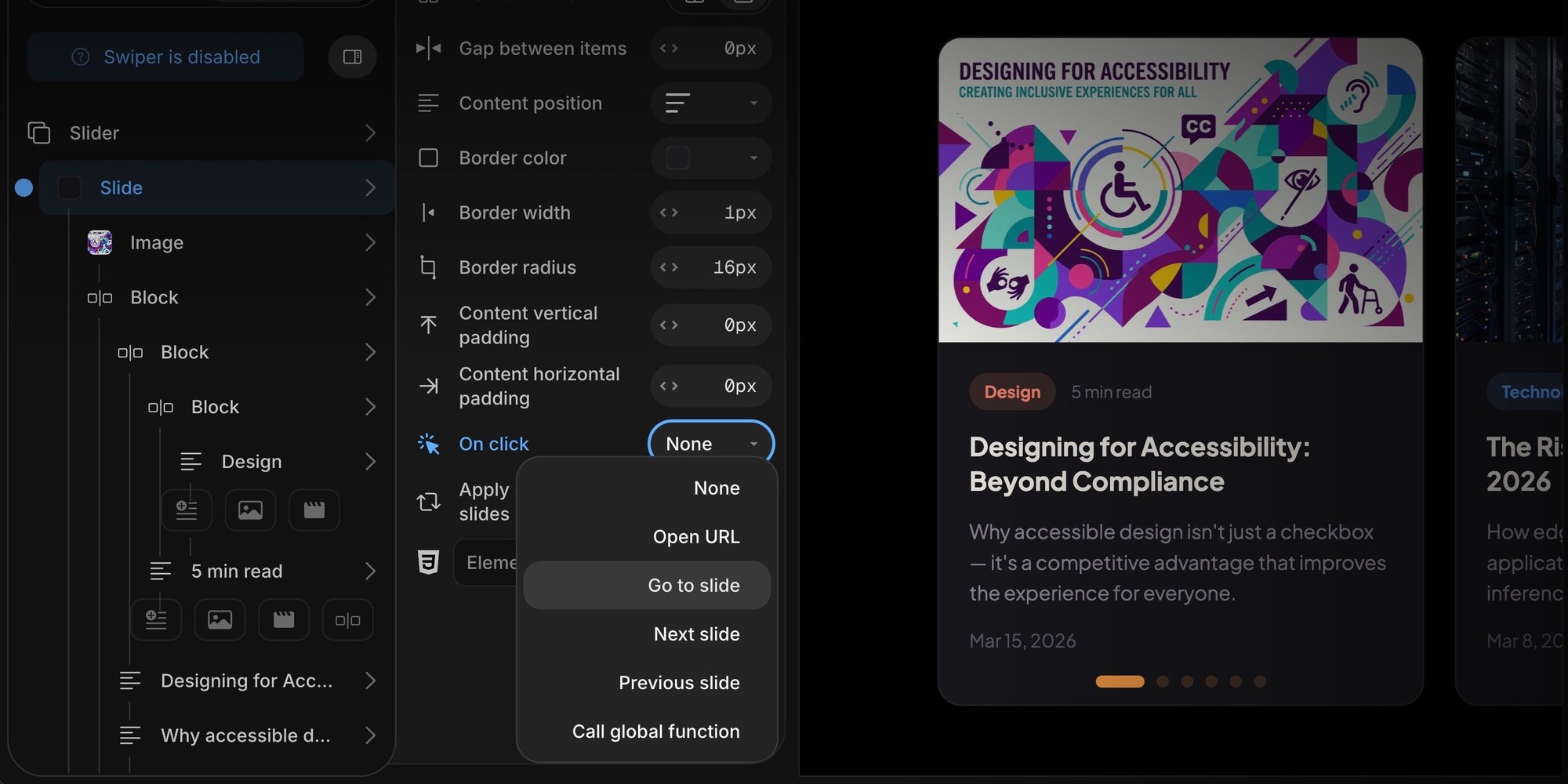
- Open URL - Navigate to any URL in the same tab. Great for turning images, cards, or whole slides into clickable links.
- Go to Slide - Jump to a specific slide by picking it from a dropdown. Perfect for hero banners with a "learn more" card that reveals a detail slide, or for building thumbnail navigators.
- Next Slide - Advance to the next slide. Build custom Next buttons that match your design, no need to rely on the default arrow styles.
- Previous Slide - Step back one slide. Pairs naturally with Next for fully custom navigation inside the slide content itself.
- Call Global Function - Call a named function on the
windowobject with the click event as its argument. Ideal for analytics, opening modals, or integrating with the rest of your page.
#Built to Survive Edits
When you choose Go to Slide, Swiper Studio stores the target as a stable slide ID, not an index. That means you can freely reorder, insert, or remove slides later without breaking any of your existing click actions - they always point to the right slide.
If a target slide is deleted, the handler is quietly skipped rather than navigating somewhere unexpected. Safe by default.
#Works Everywhere You Export
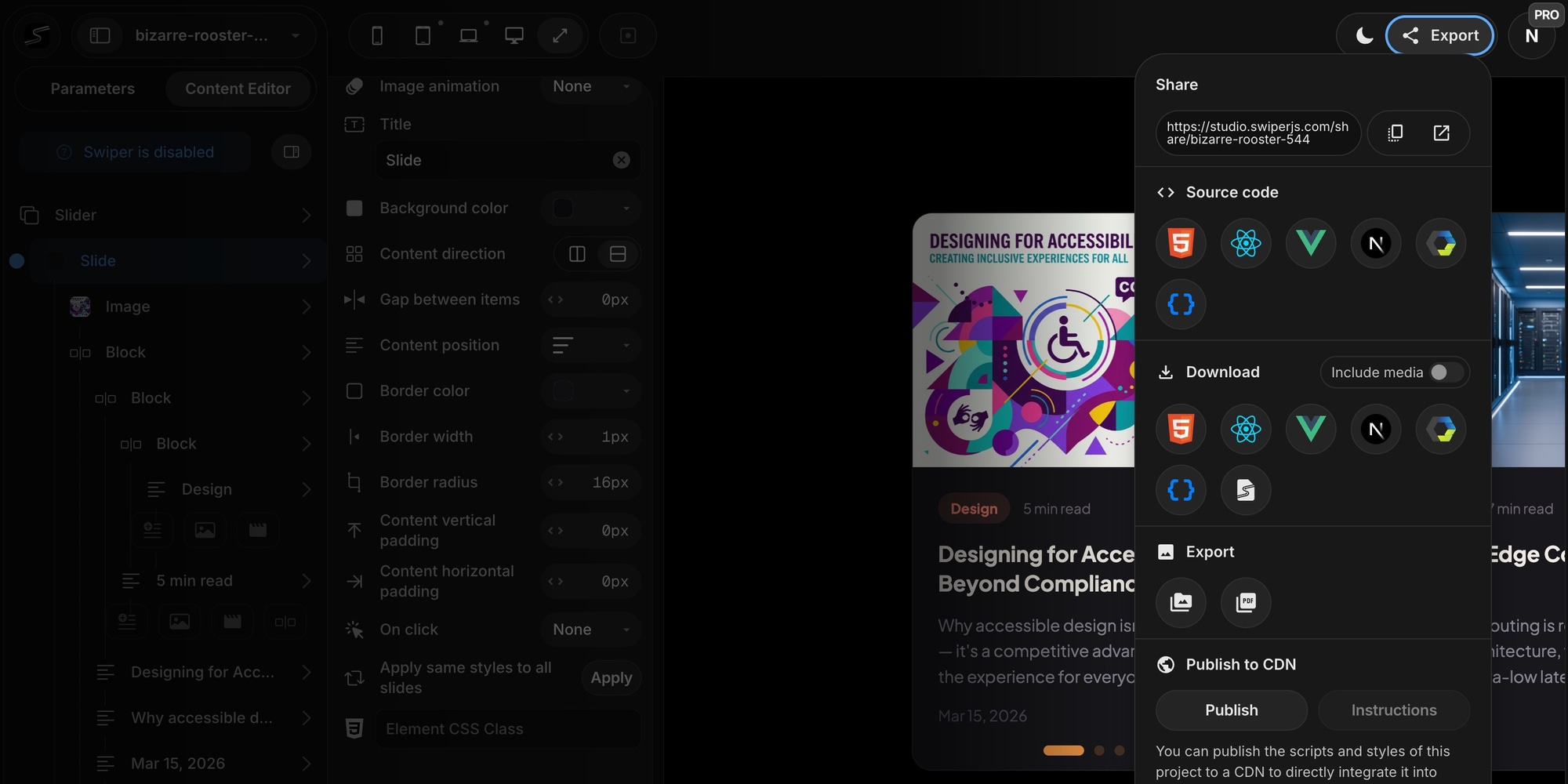
Click actions are wired up automatically in every output Swiper Studio produces:
- HTML - A single lightweight delegated listener is emitted alongside your Swiper init code
- React - Inline
onClickhandlers with a cleanswiperRefpattern - Vue - Inline
@clickhandlers usingref()and@swiper - Web Component - Listener attached to the
<swiper-container>instance - Webflow - Data attributes and ready-to-paste runtime snippet
- Published CDN - Same delegated listener bundled inside the published script
No matter how you ship the slider, the behavior is identical.
#Secure by Default
The Call Global Function action only accepts a valid JavaScript identifier, for example trackClick or openContactModal. Anything that looks like inline code is rejected at render time, so there is no path for injected scripts to sneak into your exports.
#MCP Support
The new click action properties are fully exposed through the Swiper Studio MCP Server, so AI agents can build interactive sliders for you too. Both add_slide / update_slide and all add_text / add_image / add_video / add_block / update_child tools accept on_click_action and on_click_action_value parameters. Ask Claude or Cursor to build a landing-page carousel where the CTA card jumps to the pricing slide, and it just works.
#Use Cases
Click actions open up a long list of patterns that previously required custom code:
- Landing Pages - Clickable hero slides that deep-link into your site
- Product Carousels - Full-card clickthroughs to product detail pages
- Onboarding Flows - Custom Next and Back buttons that match your brand
- Step-by-Step Guides - Clickable thumbnails that jump to any section on demand
- Marketing Campaigns - Analytics tracking on every clickable element via global functions
- Portfolios - Case study slides that open detail pages in the same tab
#Get Started
Open any project in Swiper Studio, select a slide or a child element, and scroll to the Interaction panel. Pick an action, pick a target, and preview in any export format. No build step, no custom JavaScript, no wiring up event listeners yourself.
Happy building!