#Introducing Swiper Studio for Shopify: Dynamic Sliders for Your Store
Big news for store owners: the official Swiper Studio app is now live on the Shopify App Store. Design a slider in Swiper Studio, publish it, and drop it onto any page of your store right from the Shopify theme editor - as a native theme block, with no code editing and no embed workarounds.
And we did not stop at embedding. This is our deepest platform integration yet: Swiper Studio sliders on Shopify can connect directly to your store data. Map a slider to a collection and it renders one slide per product with live titles, prices, and images. Point it at your metaobjects and your slides come straight from the content you already manage in Shopify admin. Your catalog changes - the slider stays in sync, automatically.
#Sliders That Know Your Store
Every slider tool can show images you upload. The Swiper Studio app goes further, because it understands Shopify's data model. When you publish a slider to your store, you can keep it static - or make it dynamic with one of four data sources:
-
Products from a Collection: Design one slide as a template, pick a collection in the block settings, and the slider renders one slide per product. Product title, description, price, compare-at price, vendor, and featured image are filled in from your live catalog, with prices formatted in your store currency. Add a product to the collection and it appears in the slider. Change a price and the slider shows it. No republishing, no slide editing.
-
Product Images: On product pages, a slider can render one slide per image of the product being viewed - a fully designed, animated product gallery that automatically adapts to whatever product the customer opens.
-
Metaobjects: Already managing testimonials, press quotes, team members, or promo banners as Shopify metaobjects? Map a slider to a metaobject type and it generates one slide per entry. Your content team keeps editing in Shopify admin, and the slider reflects every change.
-
Product Metafields: Sliders can read list metafields on a product - perfect for per-product feature highlights, ingredient lists, or spec carousels that differ from product to product.
This is the part no embed-based slider tool can match. An iframe or CDN widget has no idea what is in your store. A Swiper Studio slider rendered through our app does.
#Native Rendering, Zero Bloat
We know the reputation slider apps have on Shopify: injected scripts, heavy widgets, and PageSpeed penalties. So we built this one the way we would want it built for our own store.
Slides render server-side in Liquid, as part of your theme - real HTML that search engines can read, not a JavaScript widget bolted on top of the page. The only external assets are your slider's stylesheet and the Swiper.js runtime, loaded from our global CDN. Swiper.js is one of the most lightweight and battle-tested slider libraries in existence - it powers millions of websites - so your Core Web Vitals stay healthy.
And of course, everything Swiper Studio is known for comes along: 100+ templates, 10 premium effects like Panorama, Cards Stack, Slicer, and Super Flow, element-level animations, and independent responsive breakpoints for mobile, tablet, laptop, and desktop.
#How to Set It Up: Step-by-Step Guide
Getting a slider into your store takes a few minutes.
#Step 1: Install the Swiper Studio App
Install the Swiper Studio app from the Shopify App Store on your store.
#Step 2: Connect Your Store
Log into your Swiper Studio account, open the user menu, and click the "Shopify" button to connect your store.
#Step 3: Configure in Shopify Admin
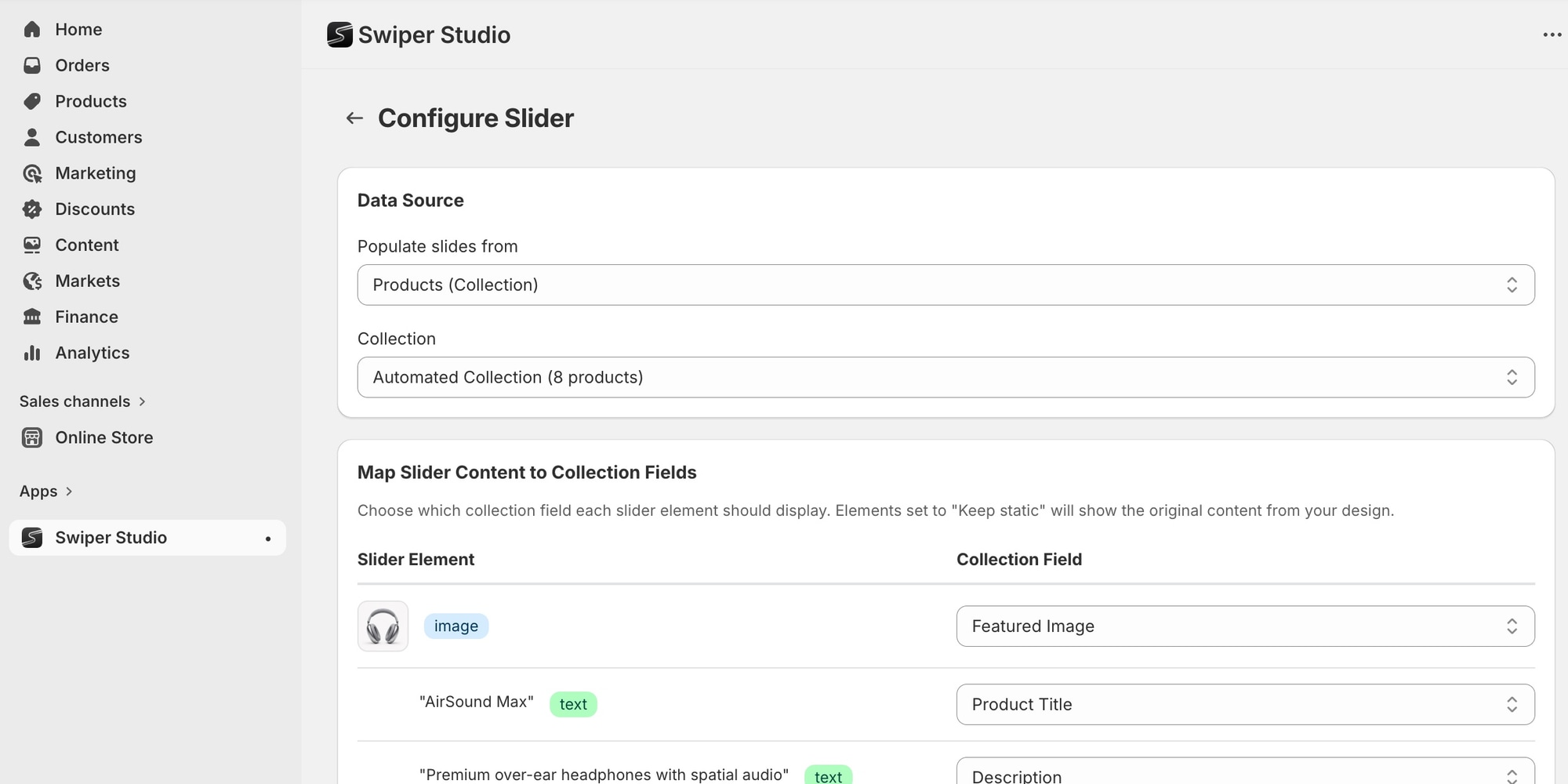
Open the Swiper Studio app in your Shopify admin. Here you select a slider, map slide elements to collection fields - product title, price, image, and more - and publish it to your theme.
#Step 4: Insert the Slider in the Theme Editor
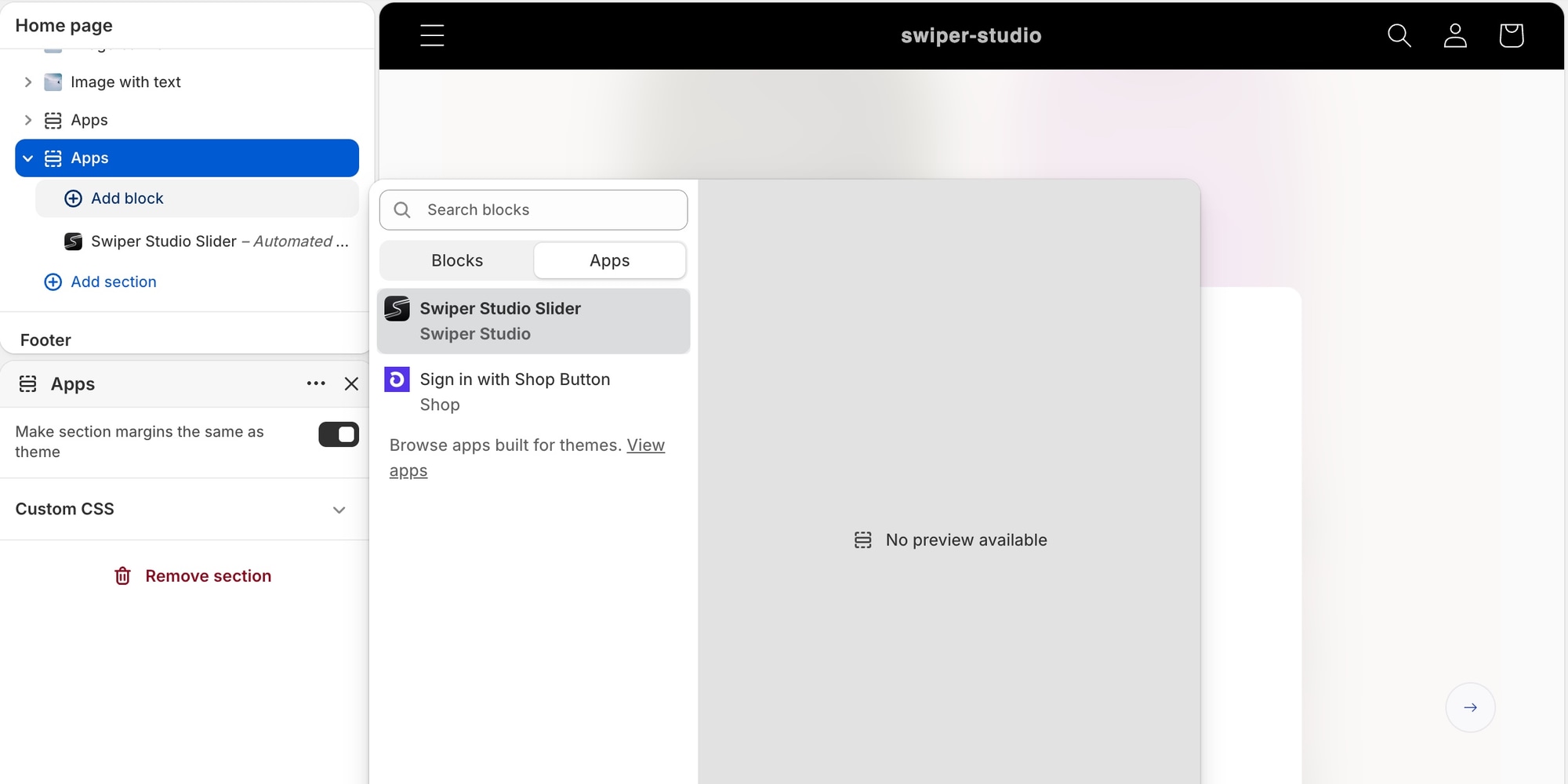
Open the theme editor (Customize theme), add a new section or block, and choose the Swiper Studio Slider. Pick the slider you want to insert - you can move it around and place it on any page.
#Step 5: Configure the Block
In the Swiper Studio block settings, specify your Project ID. If you mapped collection fields in Step 3, choose a Collection here to populate the slider with dynamic content from your store. Save, and your slider is live.
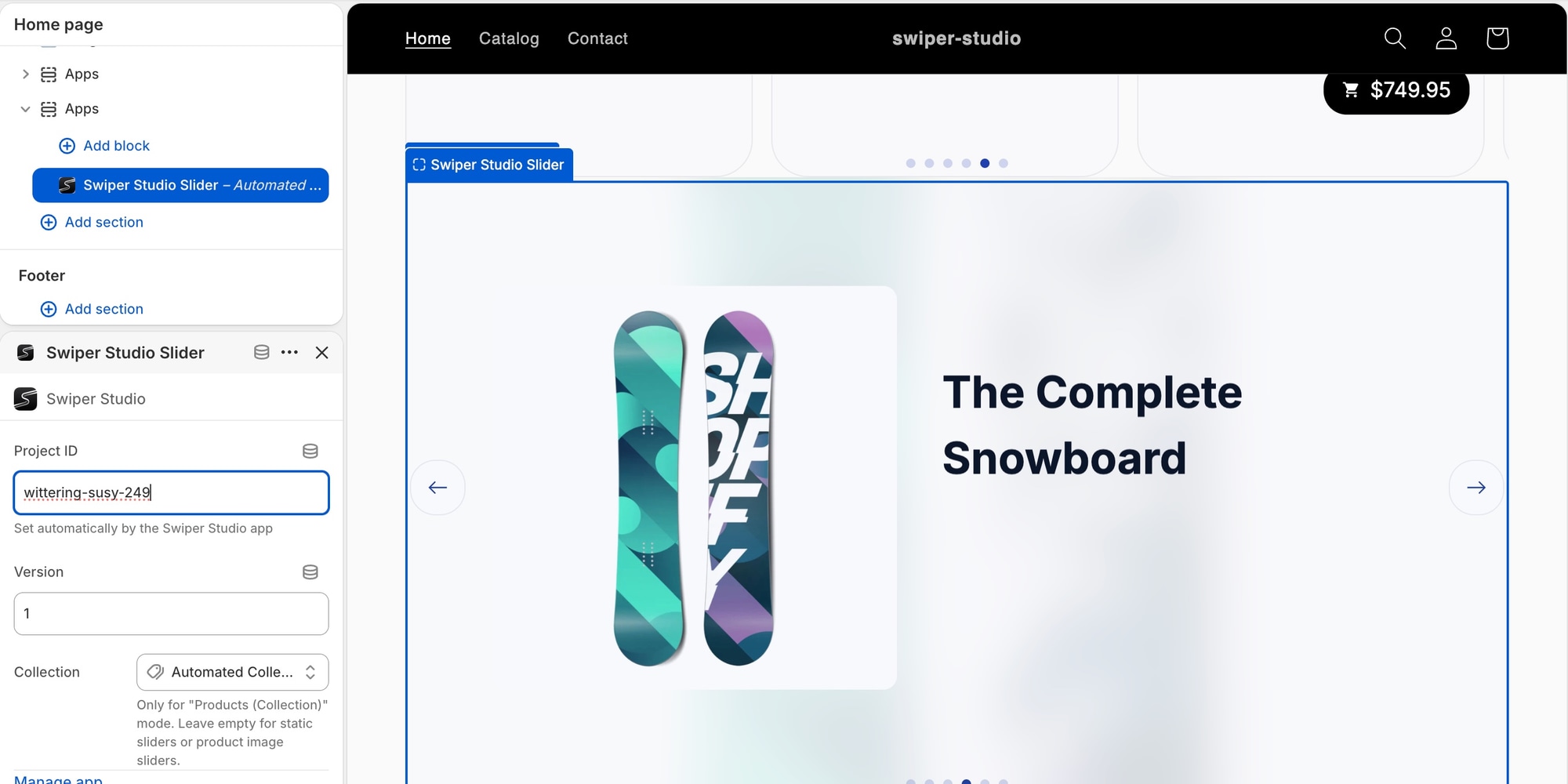
From now on, redesigning the slider in Swiper Studio and republishing updates it in your store automatically. And for dynamic sliders, day-to-day content changes need no republishing at all - they flow in from your products and metaobjects.
#What About Pricing?
The Shopify app is covered by your regular Swiper Studio plan - no separate app subscription stacked on top. If you already have a Swiper Studio account, just connect your store and go. If you are new, you can subscribe right inside the app through Shopify Billing: Individual or Team, monthly or annual.
One plan covers everything: the Shopify app, the Paste into Webflow, code export to HTML, React, Vue, Next.js, and Web Component, CDN publishing, iFrame embeds, the MCP server, and all templates and premium effects.
#What You Can Build Today
- Homepage hero banners with premium effects and animated text that you update yourself in minutes
- Dynamic product carousels - featured collections, new arrivals, best sellers - that stay in sync with your catalog
- Product page galleries that render each product's own images with designed layouts and animations
- Testimonial and social proof sliders driven by metaobjects your team edits in Shopify admin
- Seasonal campaign sliders you can redesign and republish without touching your theme
#Try It Today
The Swiper Studio app is live on the Shopify App Store right now. Install it, connect your store, and see how it works with your own catalog. If you want the full picture of how Swiper Studio fits Shopify stores, read our Swiper Studio for Shopify guide.
We built this integration because we run on the same conviction as always: sliders should be fast, beautiful, and effortless to keep fresh. We can't wait to see what you build for your store!