#How Export Works
Recently, we've been getting more and more questions from customers who are interested in getting All-access, but don't know what Swiper Studio export is and how it works.
#Export Modal
When we click the "Export" button in the application, we first see the following export modal window:
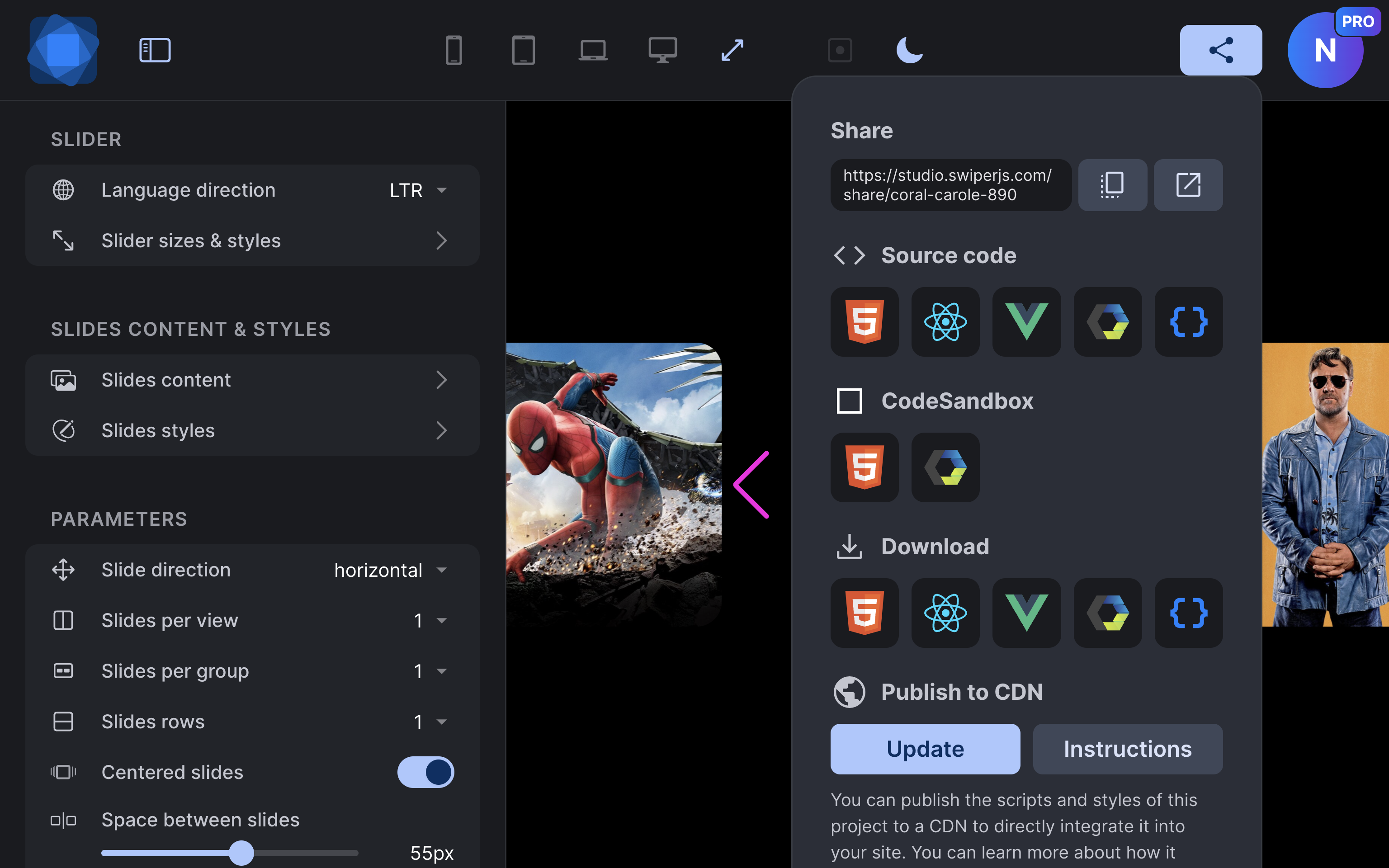
Now let's check what each of these modal sections means.
#Share
The first "Share" section provides a link that you can copy in place or open in a new window. This link gives you access to a preview of your project "from the outside," without the "editor" part and all the settings and sliders, just the full-screen Swiper. For example, you can send it to a colleague and ask if he is happy with it.
#Source Code
This section allows you to view the source code of a configured and ready to integrate Swiper. Clicking on any button here opens the so-called code viewer, where you can see the files and their code. There are several options here:
-
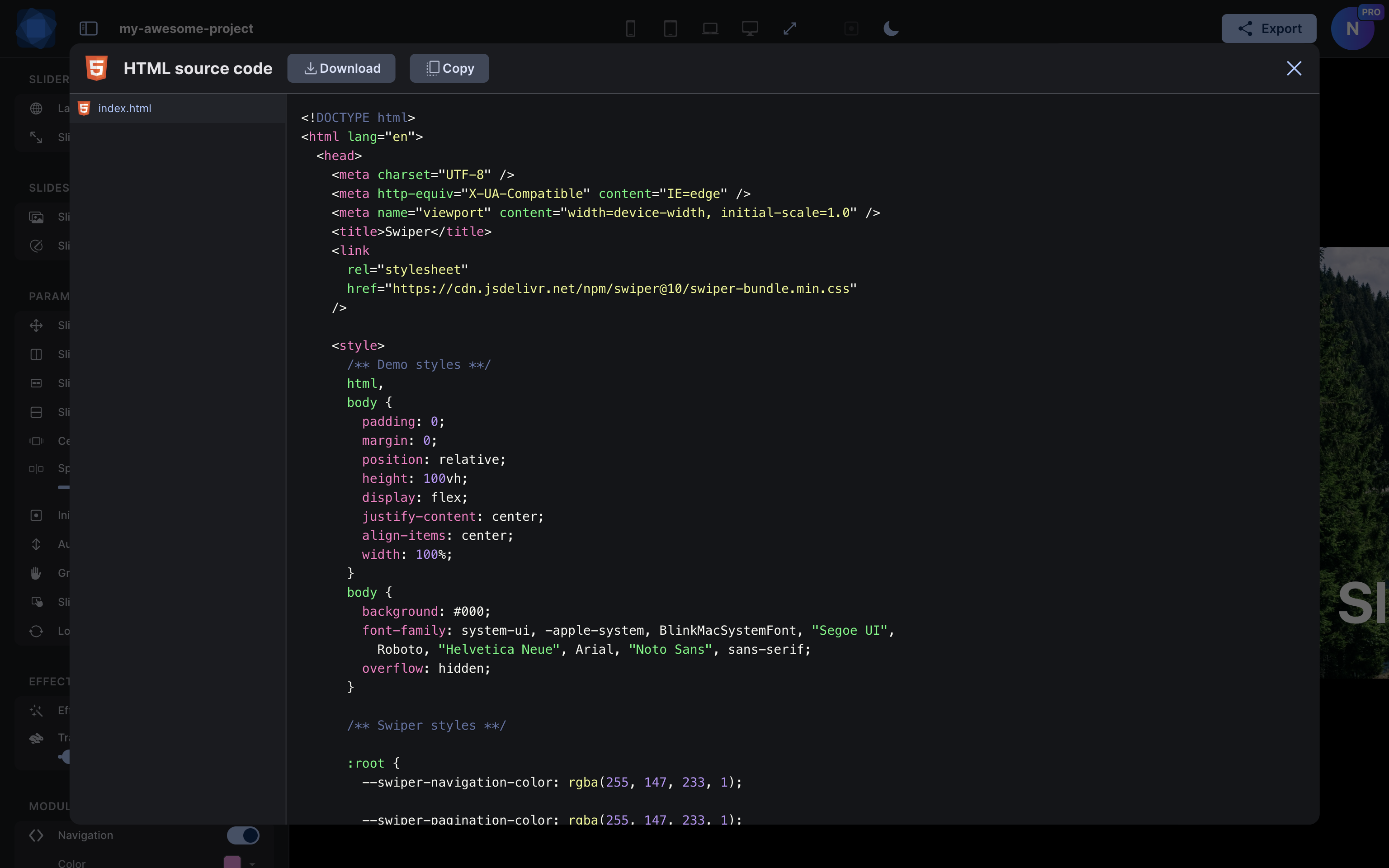
HTML - It opens a modal with a full single HTML page with all the required styles and scripts:
-
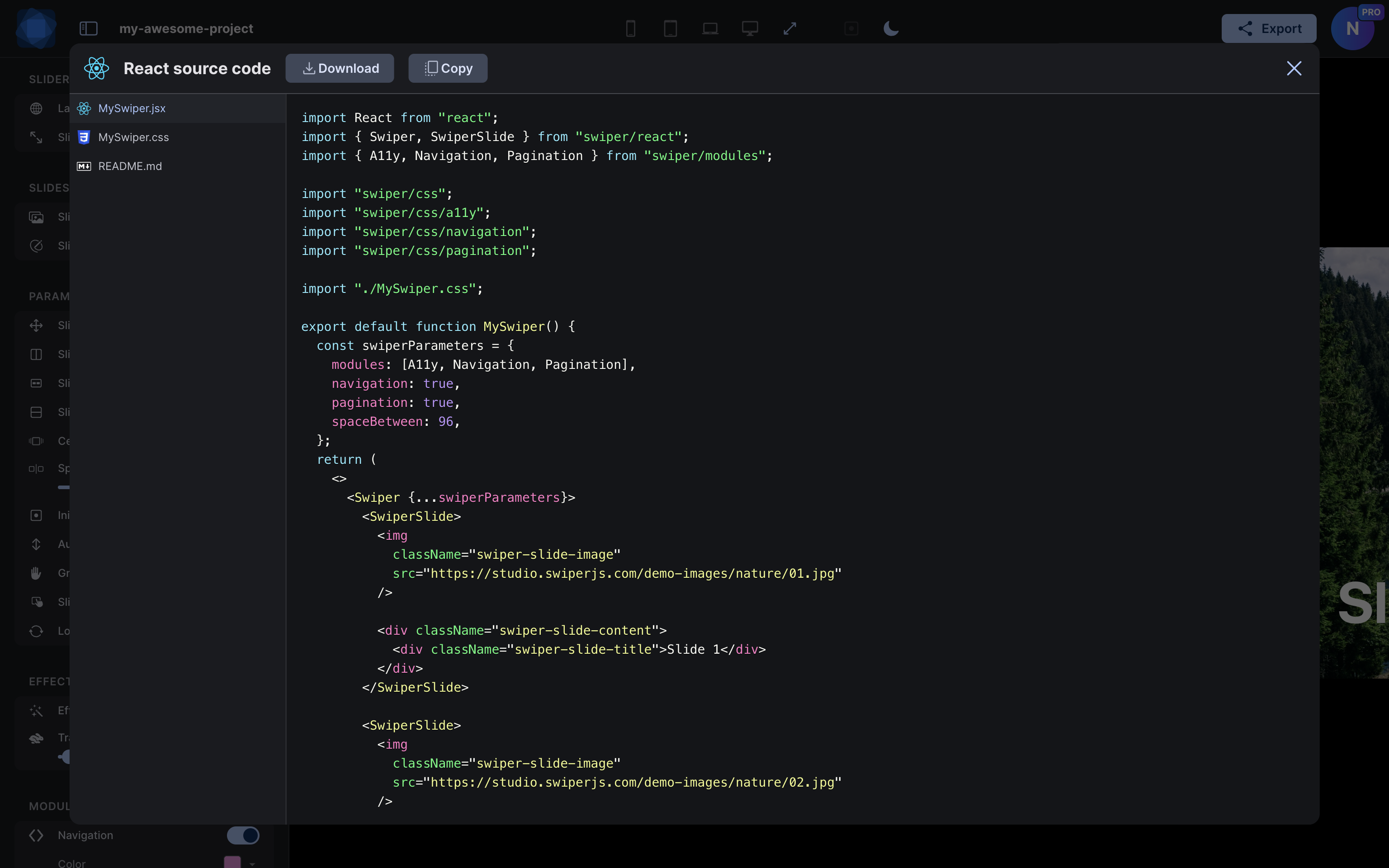
React - It opens a modal with a full code for React component and file with the required styles:
-
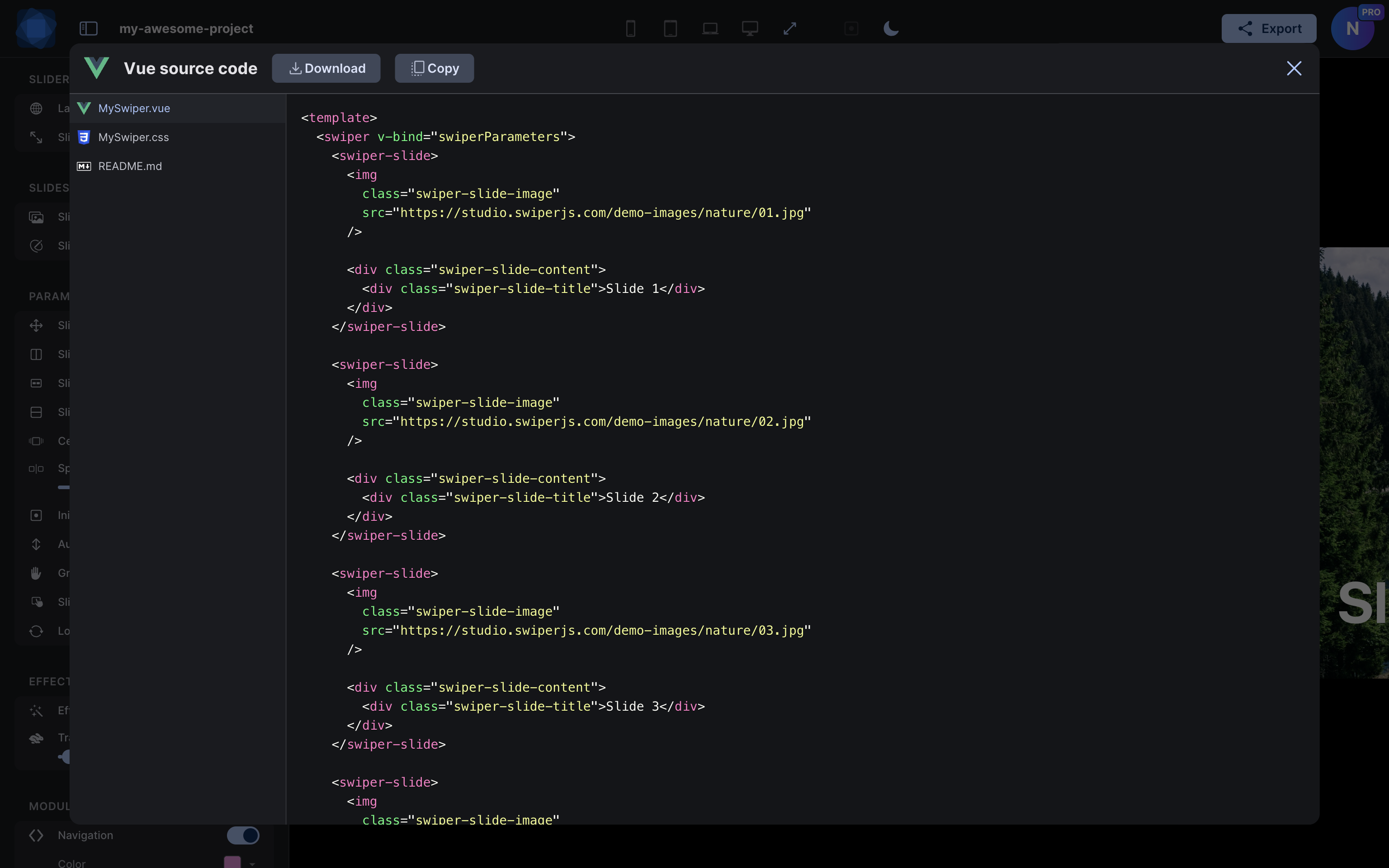
Vue - It opens the modal with a full code for Vue component and file with the required styles:
-
Next.js - It opens a modal with a complete Next.js App Router project - including a
'use client'Swiper component, layout, page, styles, and all configuration files. Ready to install and run. Learn more in the New Export Option: Next.js blog post. -
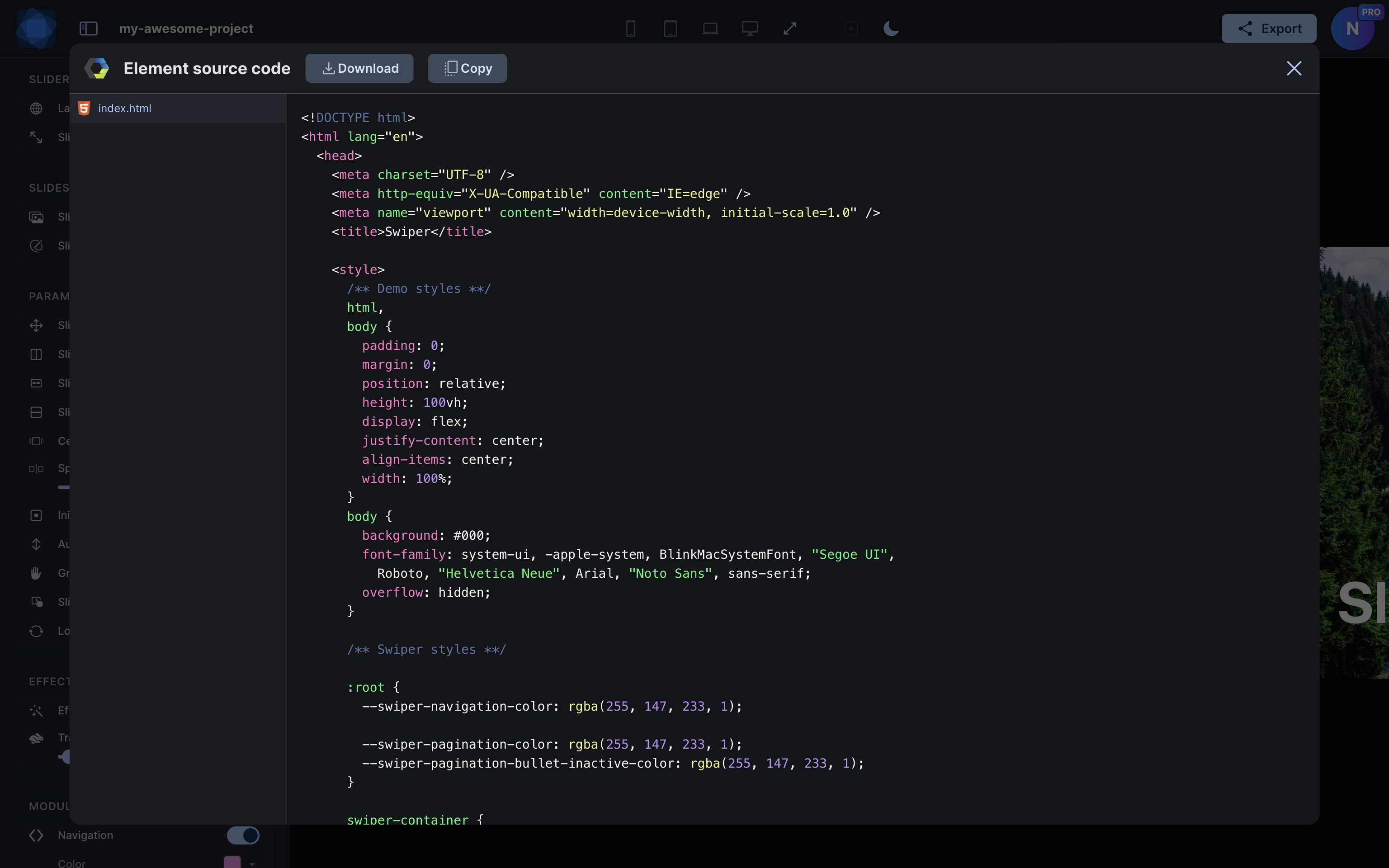
Web Component - Similar to HTML source code - a full single HTML page with all the necessary styles and scripts, but here the generated code uses the Swiper element (web component):
-
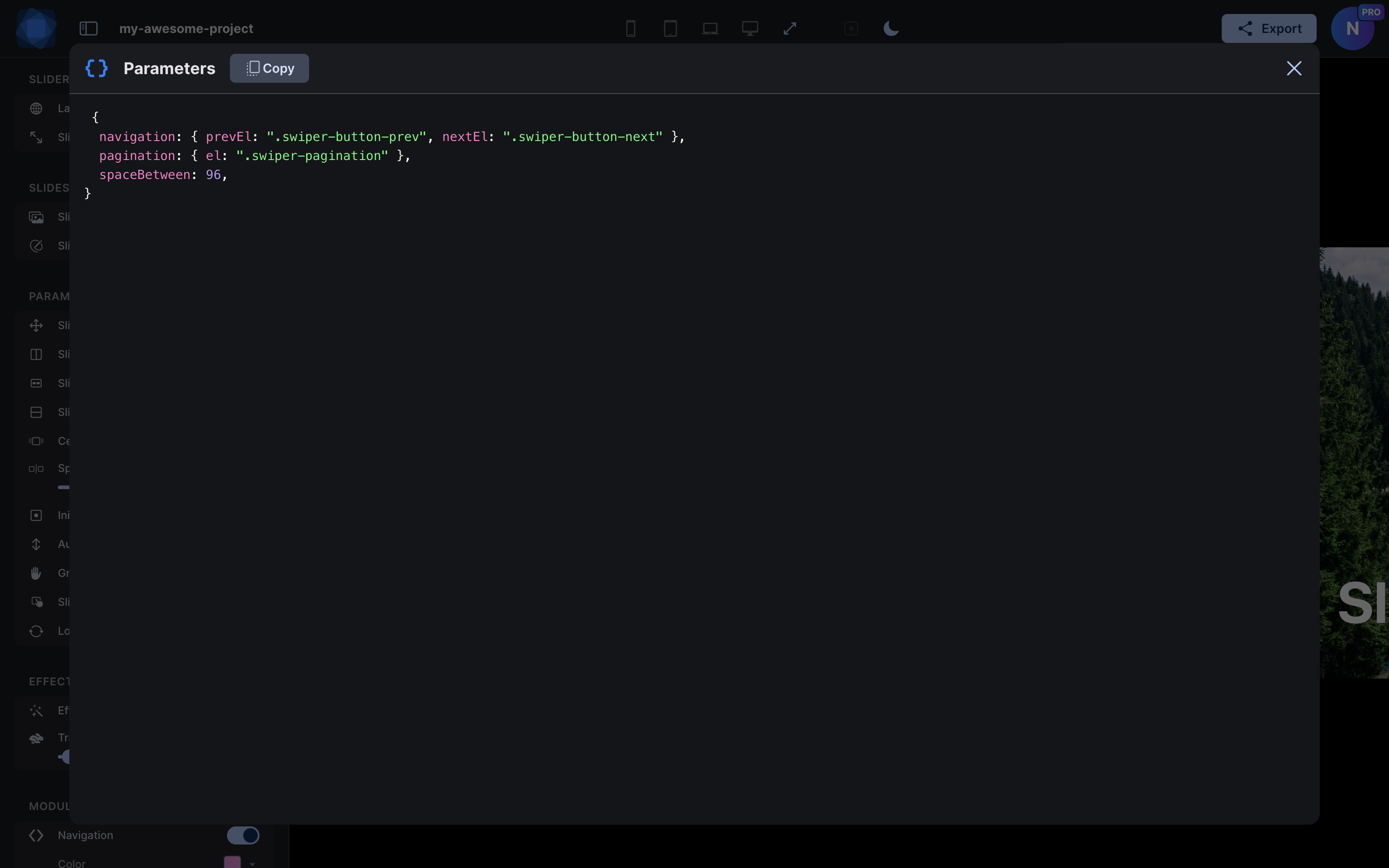
Parameters - It opens a modal with just a parameter object that you can quickly copy and paste to your codebase:
#Download
This section allows you to download the code of a configured and ready to integrate Swiper. Clicking any button here will download the zip file. The options here are the same as in the source code viewer:
- HTML - downloads zip archive with a full single HTML page with all the required styles and scripts
- React - downloads zip archive with a full code for React component and file with the required styles
- Vue - downloads zip archive with a full code for Vue component and file with the required styles
- Next.js - downloads zip archive with a complete Next.js App Router project, including Swiper component, styles, and configuration files
- Web Component - Similar to HTML source code - a full single HTML page with all the required styles and scripts, but here the generated code uses the Swiper element (web component)
- Parameters - downloads zip archive with just a parameter object in JSON file that you can quickly copy and paste to your codebase
Below you can download Swiper Studio export examples for a pretty basic Swiper setup with coverflow effect:
#Export to Images & PDF
This section allows you to export your slider slides as images or as a PDF document. Each slide is rendered as a high-resolution screenshot on the server side.
- Images - Exports each slide as a separate PNG image, delivered as a zip archive. This is useful for presentations, social media, or any case where you need individual slide images.
- PDF - Exports all slides into a single multi-page PDF document, with one slide per page. The PDF dimensions match your slider's aspect ratio, making it perfect for sharing or printing.
#Publish To CDN
This functioanlity described in Publish To CDN blog post
#P.S.
This was an overview of how Swiper Export works. If you still have questions or think something is still missing, feel free to contact us.